
1. Application Overview and Concept
DayLeaf Calendar is a Windows desktop application that combines the "paper calendar-flipping experience" with "local-only security". All operations follow a copy → save to dedicated area workflow, designed with the highest priority on not damaging original files.
Design Philosophy and Data Policy
- Paper calendar-flipping experience: Reproduces the experience of "flipping in the morning first thing" with page flipping, sounds, and themes.
- Copy-based operation: All notes, drawings, and files are copied and saved to an app-specific area, with no modifications to original data.
- Date-by-date independence: Organized in a `year/month/day` folder structure, designed for safe recovery from the Recycle Bin in case of accidental deletion.
- Morning routine support: Launch DayLeaf and shortcuts simultaneously with Windows startup to create a starting point for your day.
DayLeaf v1.4.0 New Features
- Startup shortcuts: Added a shortcut panel displayed at DayLeaf startup. Register any apps or files, and enable automatic execution.
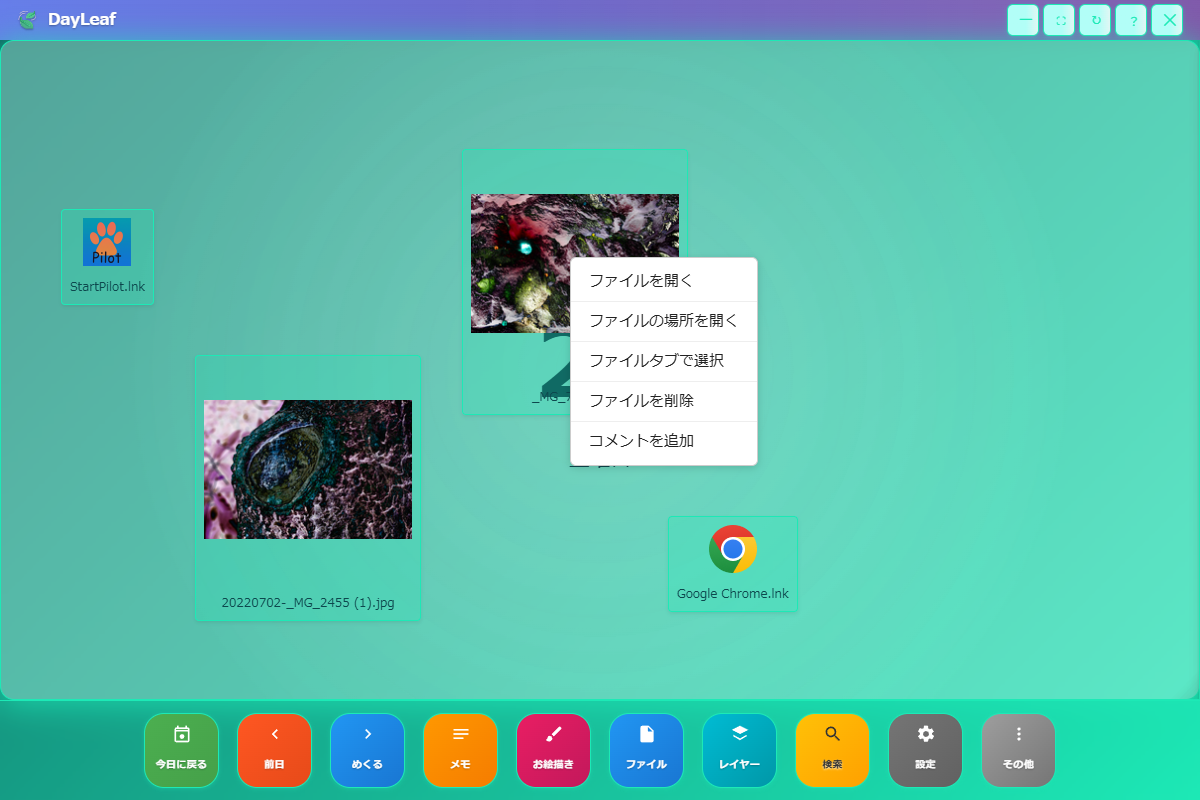
- Icon comments: Right-click files on the calendar → "Add comment" to attach speech bubble notes. Useful for identification and supplementary information.
Application Overview
- Display notes, doodles, drawings, and files in layers for each date.
- Reproduces the feel of paper with page-flipping animations and sounds.
- Includes safety features such as search, Recycle Bin, and data migration within the app.
- UI is customizable with Japanese/English, 11 themes, and 5 thumbnail size levels.
2. Initial Setup (Language, Theme, Sound)
Initial operations are organized with screenshots below.
-
Initial display (English) – Open settings from the Settings button at the bottom.

English UI immediately after installation. -
Switch LANGUAGE to Japanese – Note that you can switch back to English at any time.
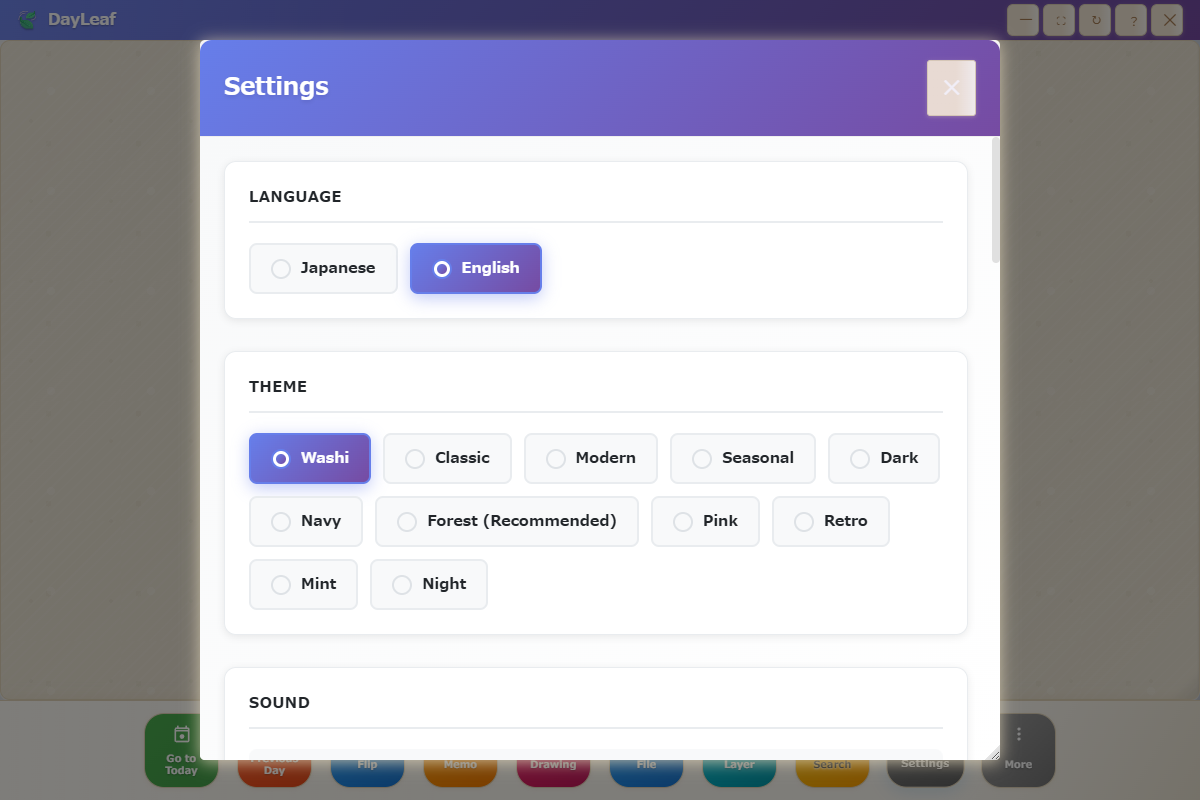
Select language at the top of the settings modal. -
SAVE → Auto restart – The window will close once and redisplay.
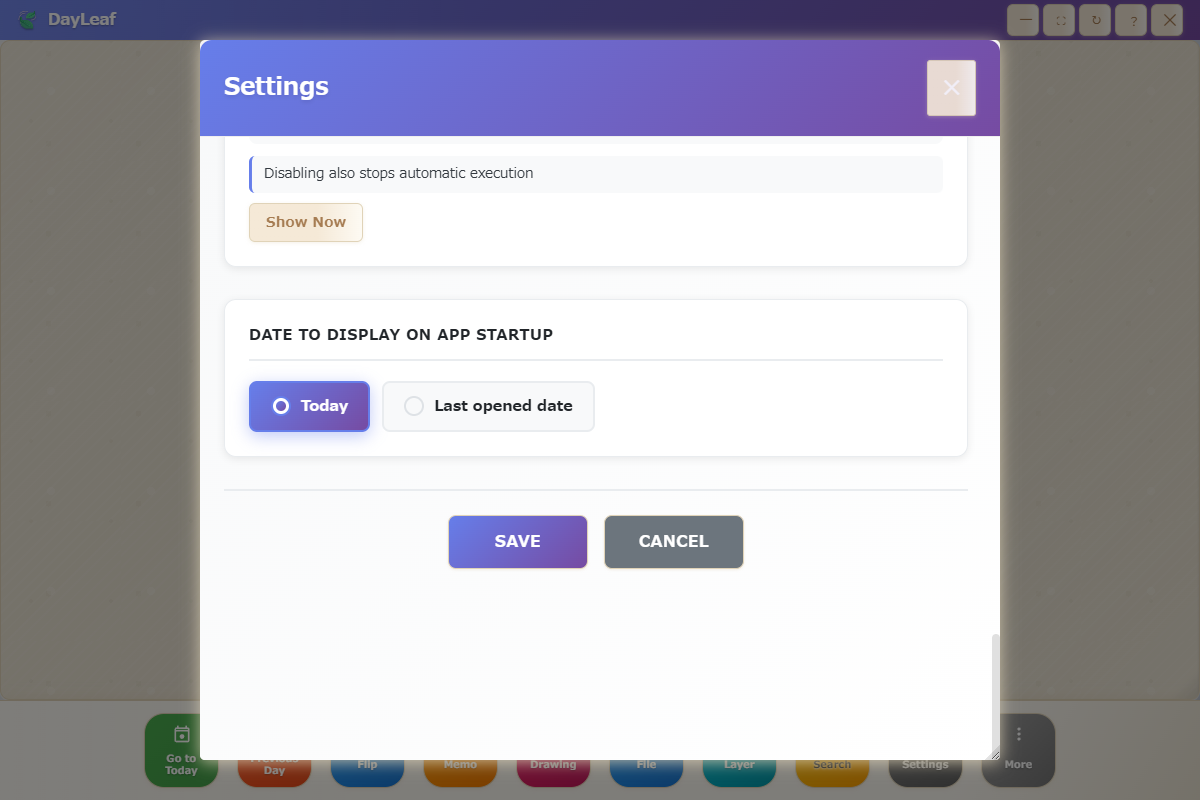
Wait a few seconds after saving for restart to complete. -
Confirm Japanese UI – Completed when the title bar and control bar are displayed in Japanese.
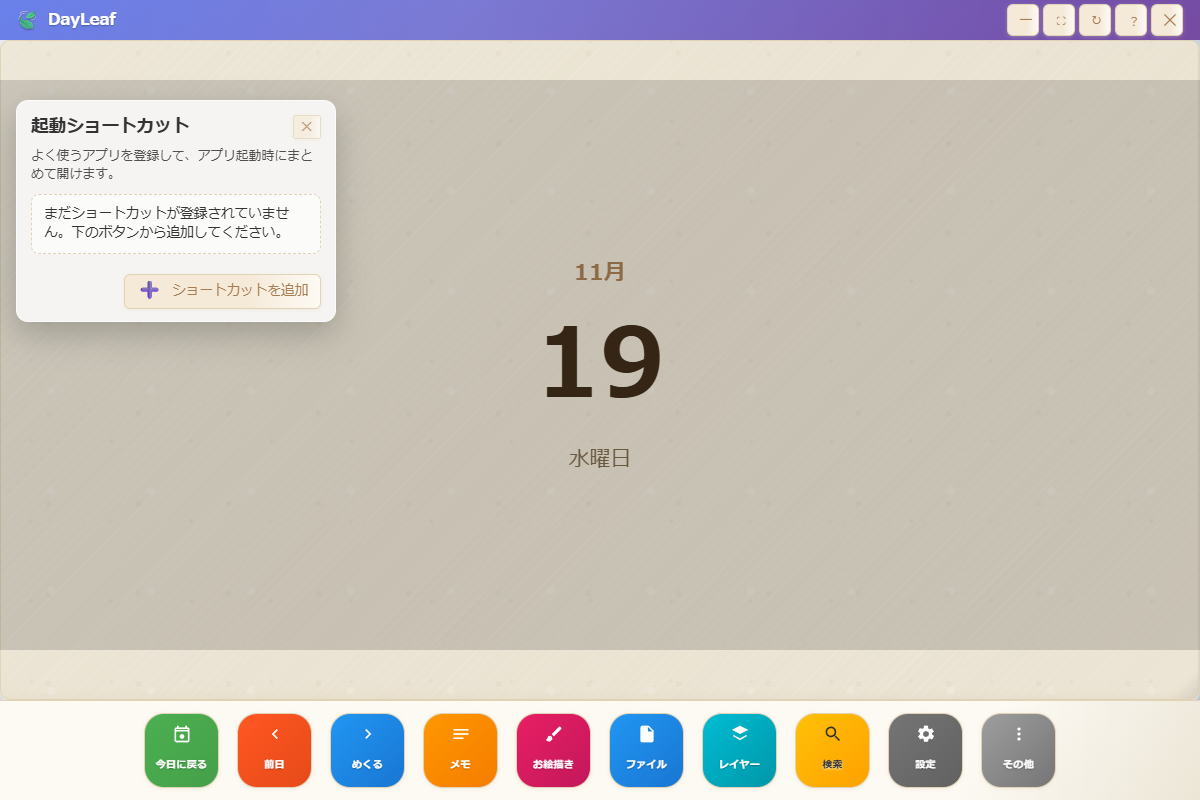
You can switch back to English using the same procedure.
Themes and Thumbnails

Thumbnail size has 5 levels: 48, 80, 120, 160, 210px. This applies to both the calendar and modals.
Sound and Animation
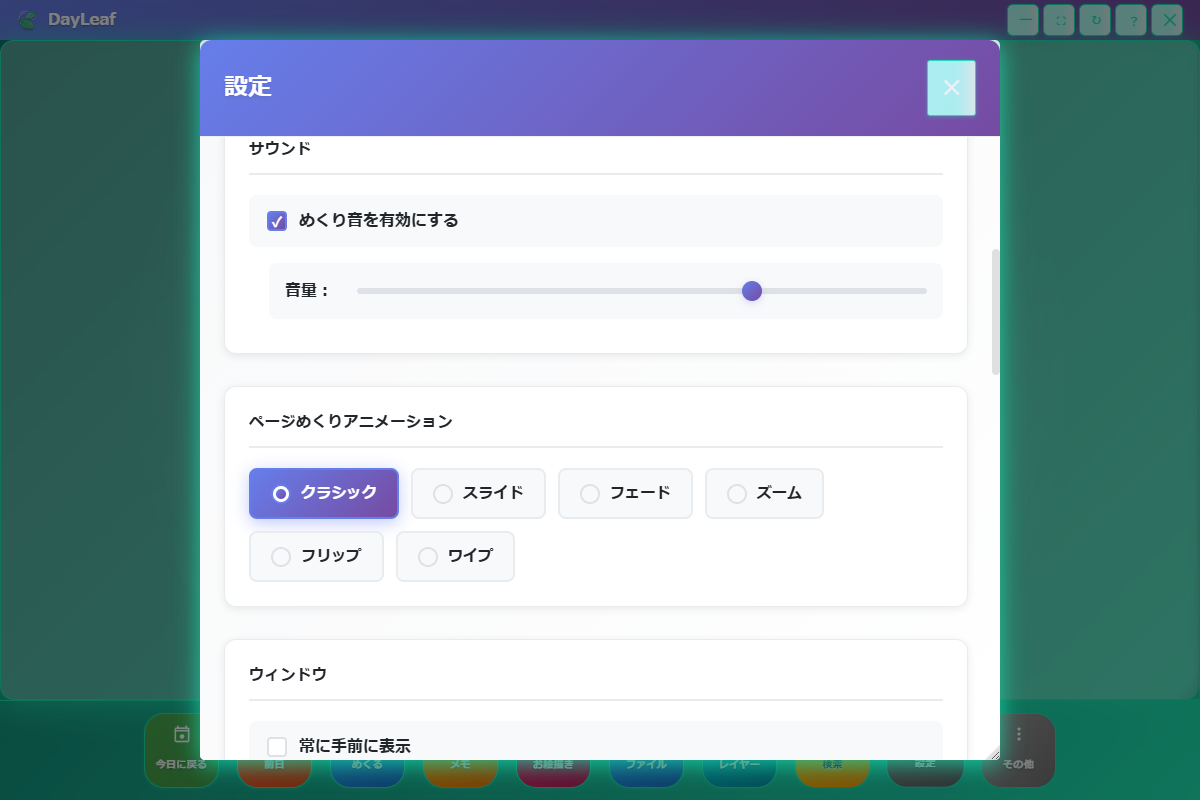
Page Flipping Demo
3. Main Screen and UI Catalog
Catalog of the calendar body and modal groups with their roles. Refer to this when writing each chapter.
- Title bar: Minimize/maximize/reload/help/close.
- Calendar body: Composed of front and back pages plus content layers. Freely arrange items for each date.
- Control bar: Today/Previous/Next/Note/Drawing/File/Layer/Search/Settings/Other.
- Modal groups: Note, new file, drawing, layer, search, settings, Recycle Bin list, etc.
| Category | Role | Main Operations |
|---|---|---|
| #01 Main Calendar | Canvas for all content | Page flipping/Drag placement/Right-click |
| #02 Note Modal | Text note management | New/Reorder/JSON import-export |
| #03 File Modal | File repository | Add/Delete/Comment/Thumbnail switching |
| #04 Drawing Modal | Drawing studio | Tool selection/Line width/Font adjustment/Save/Load |
| #05 Settings Modal | Theme/Language/Data/Sound | Distinguish between settings that apply immediately and those requiring restart |
| #06 Search Modal | Cross-content search for notes/files | Keyword + date range → date jump |
| #07 Layer Modal | Show/hide switching | Toggle operations apply immediately |
| #08 Startup Shortcuts | Auto-run at startup | Add shortcuts/Reorder/Auto-execute |
| #09 Recycle Bin List | Restore deleted data | Check type/size → Restore/Delete permanently |
| #10 Old Edit Modal | Compatibility UI | Manage notes/doodles/files in tabs |
Other Menu
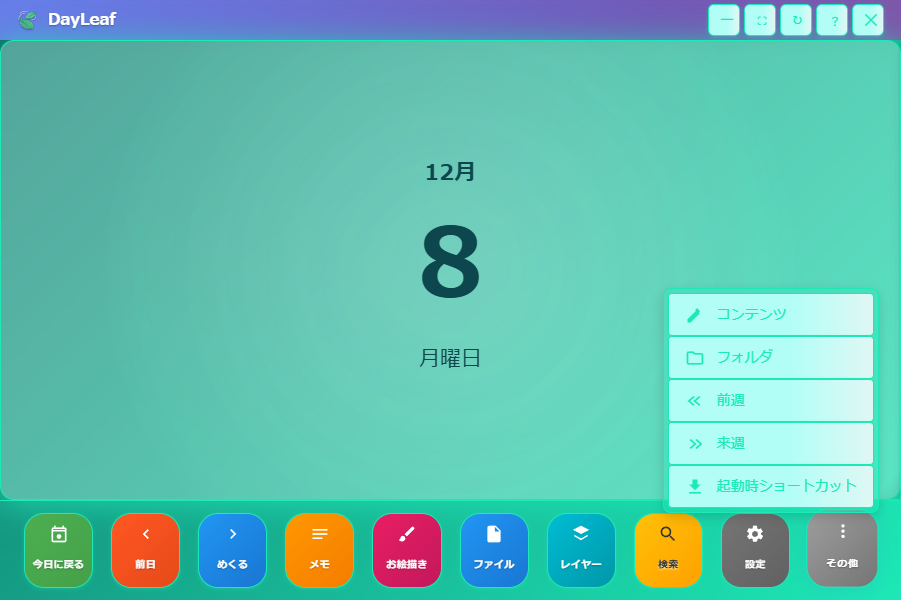
- Content: Launches the old version's content edit modal. Has tabs for Notes/Doodles/Files, provided as a compatibility mode when the old UI is needed.
- Folder: Opens the save folder for the currently displayed date (e.g.,
%APPDATA%\dayleaf-calendar\calendar\2025\12\08) in Explorer. - Previous Week/Next Week: Shortcuts to jump dates by one week.
- Startup Shortcuts: Opens the shortcut panel immediately. See the Startup Settings section for registration and auto-execution settings.
Old Content Edit Modal (Compatibility)
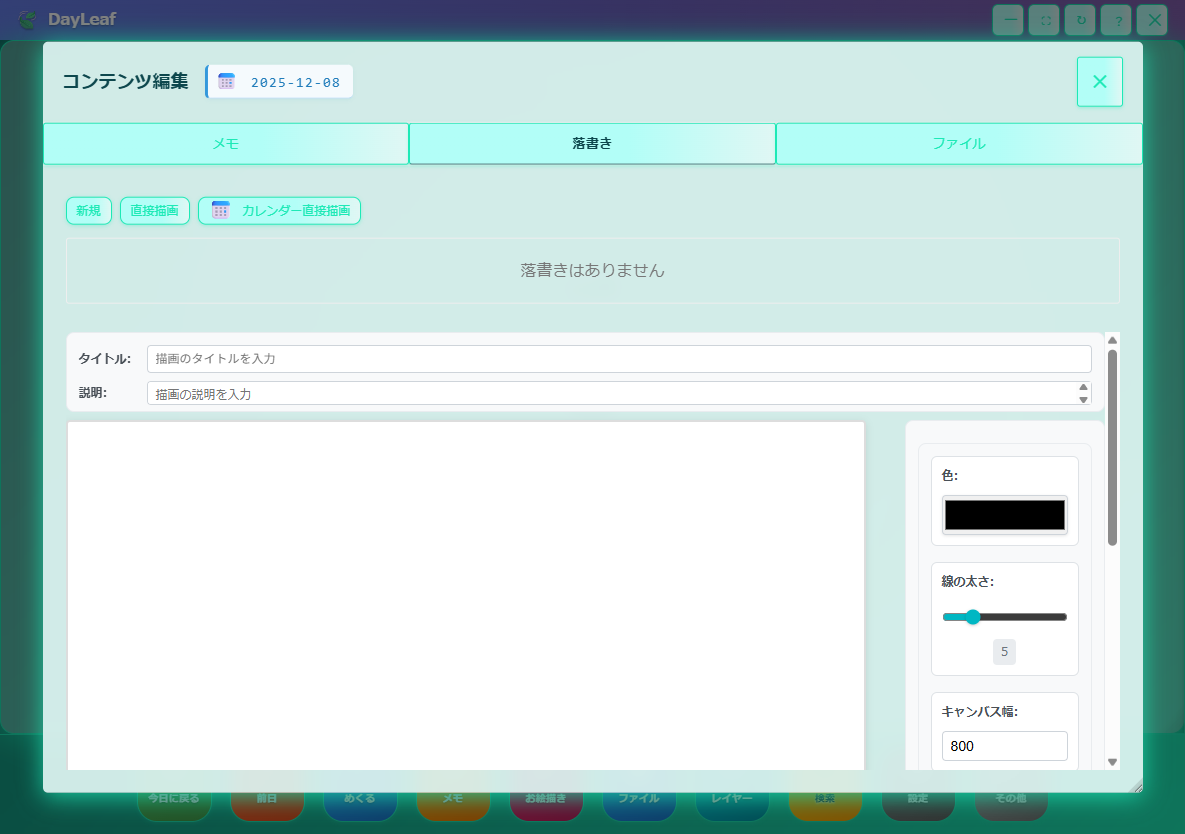
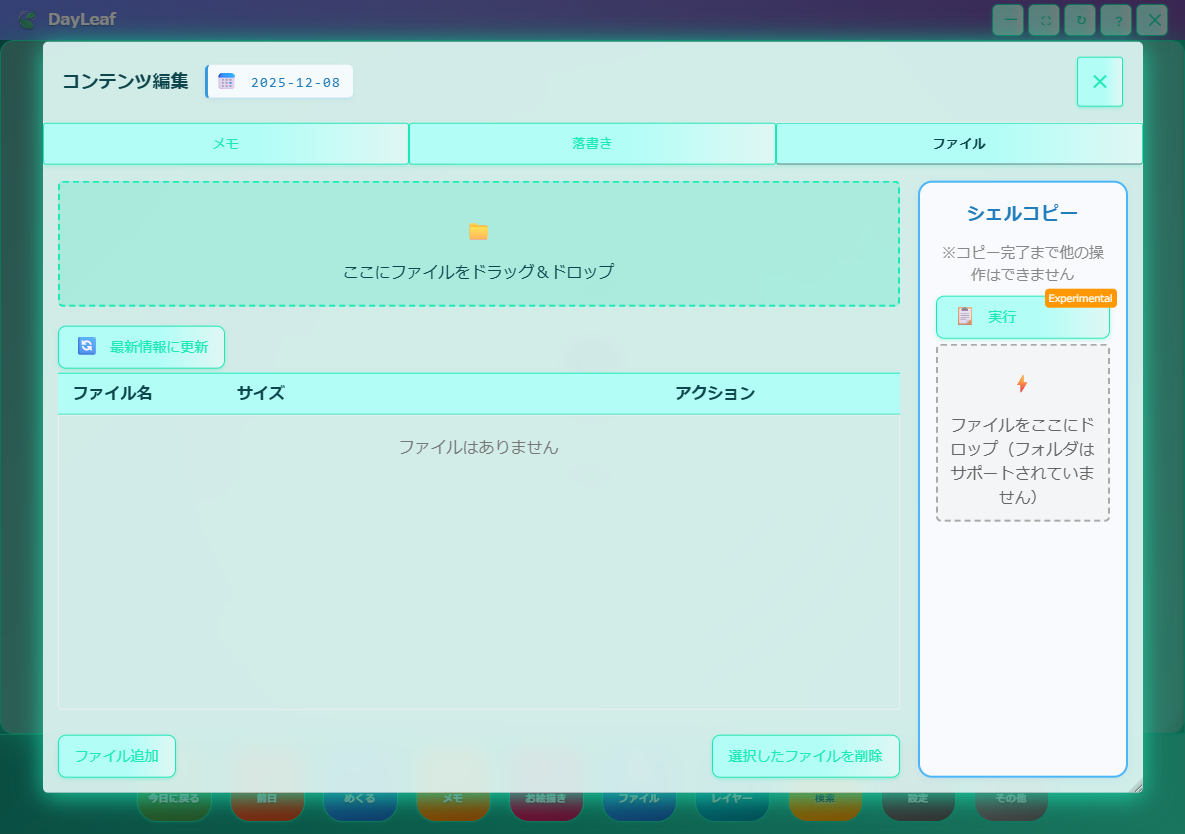
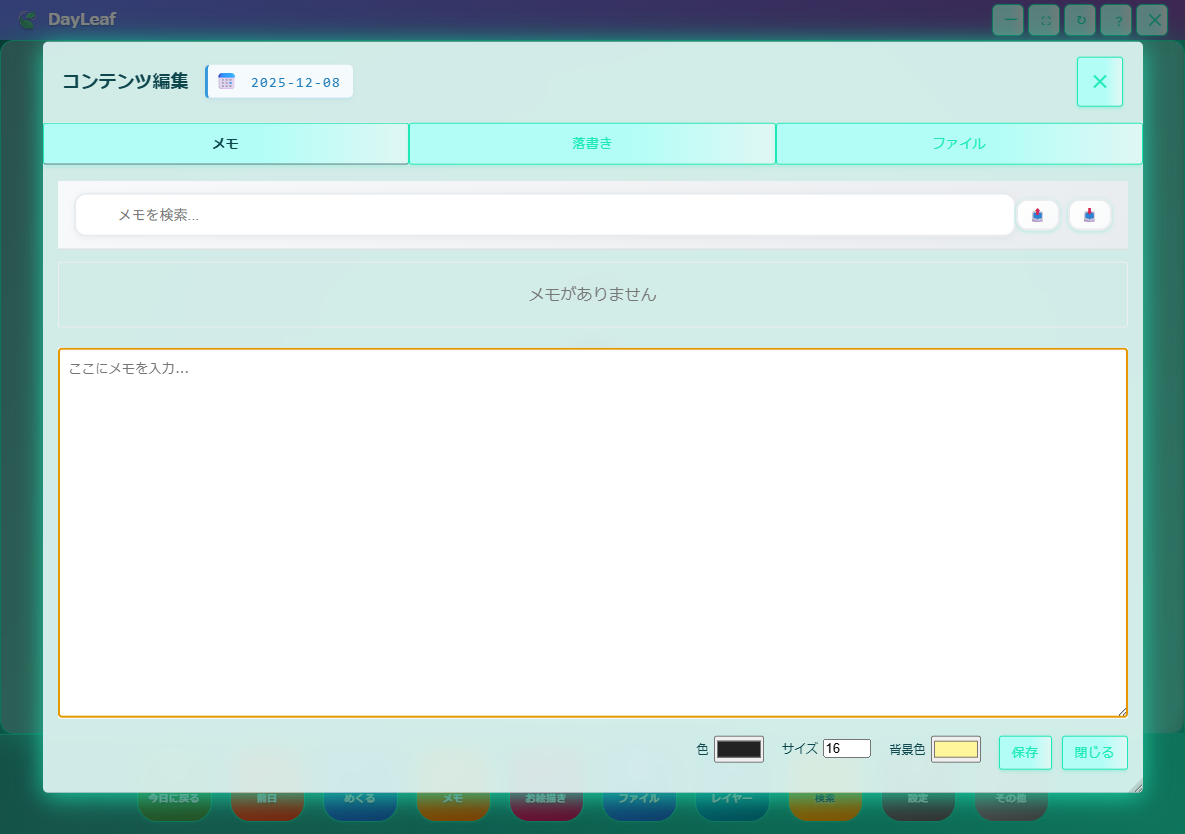
The old modal is a feature kept for backward compatibility, and we currently recommend using the new Note/File/Drawing modals. This manual also reprints procedures that were provided in the old UI such as template pasting and shell copying, so all operations can be completed with this manual alone.
4. File Operation Workflow
Covers management from the File button, display switching, search/sorting, and adding comments.
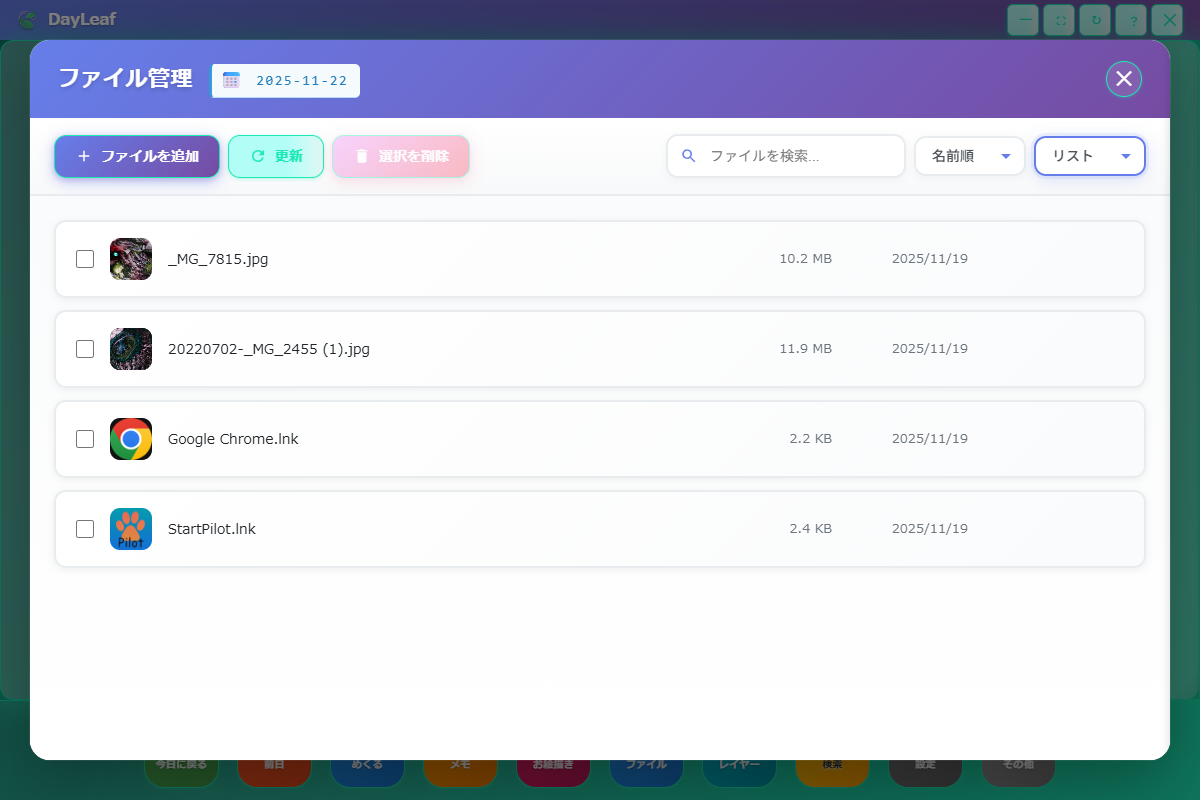
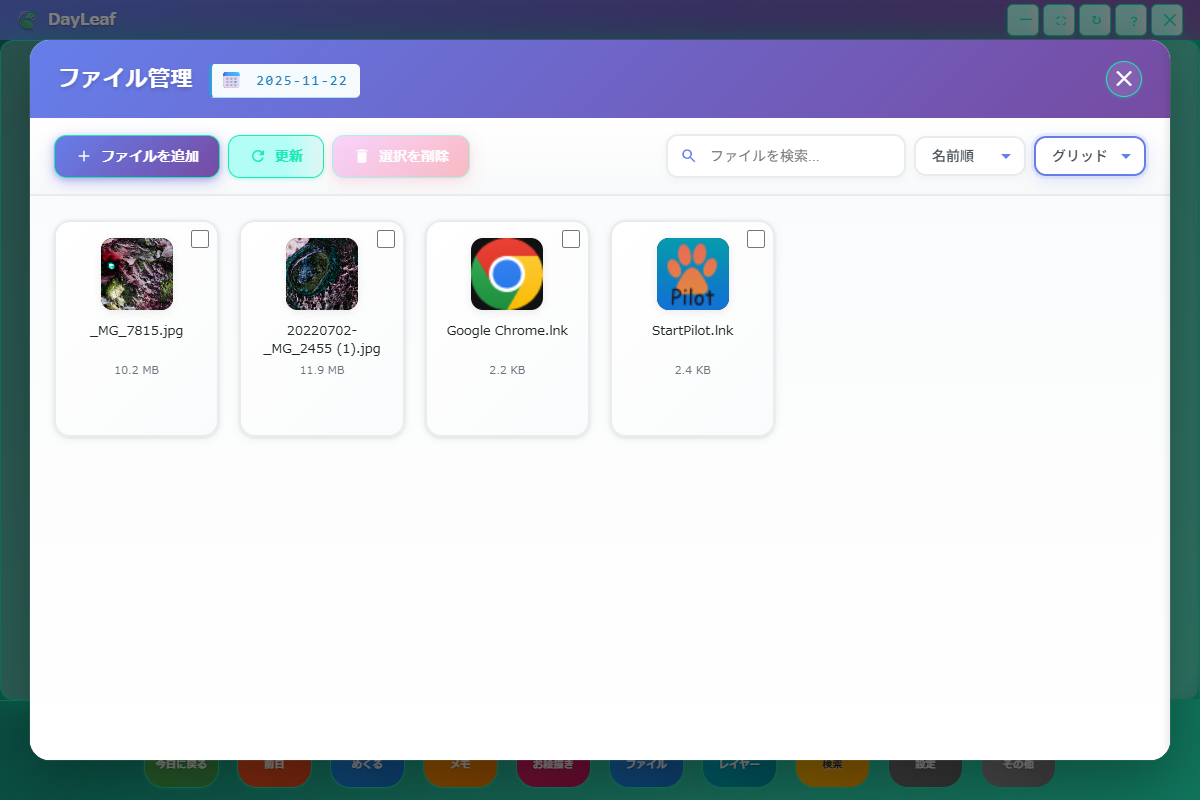
- Display switching: Instantly change layout with "List/Grid" in the top right.
- Search bar: Filter file names with partial match.
- Sorting: Organize by selecting from "Name/Size/Update date" order.
- Actions: Add/reload/batch delete with "Add File", "Refresh", and "Delete Selected" buttons.
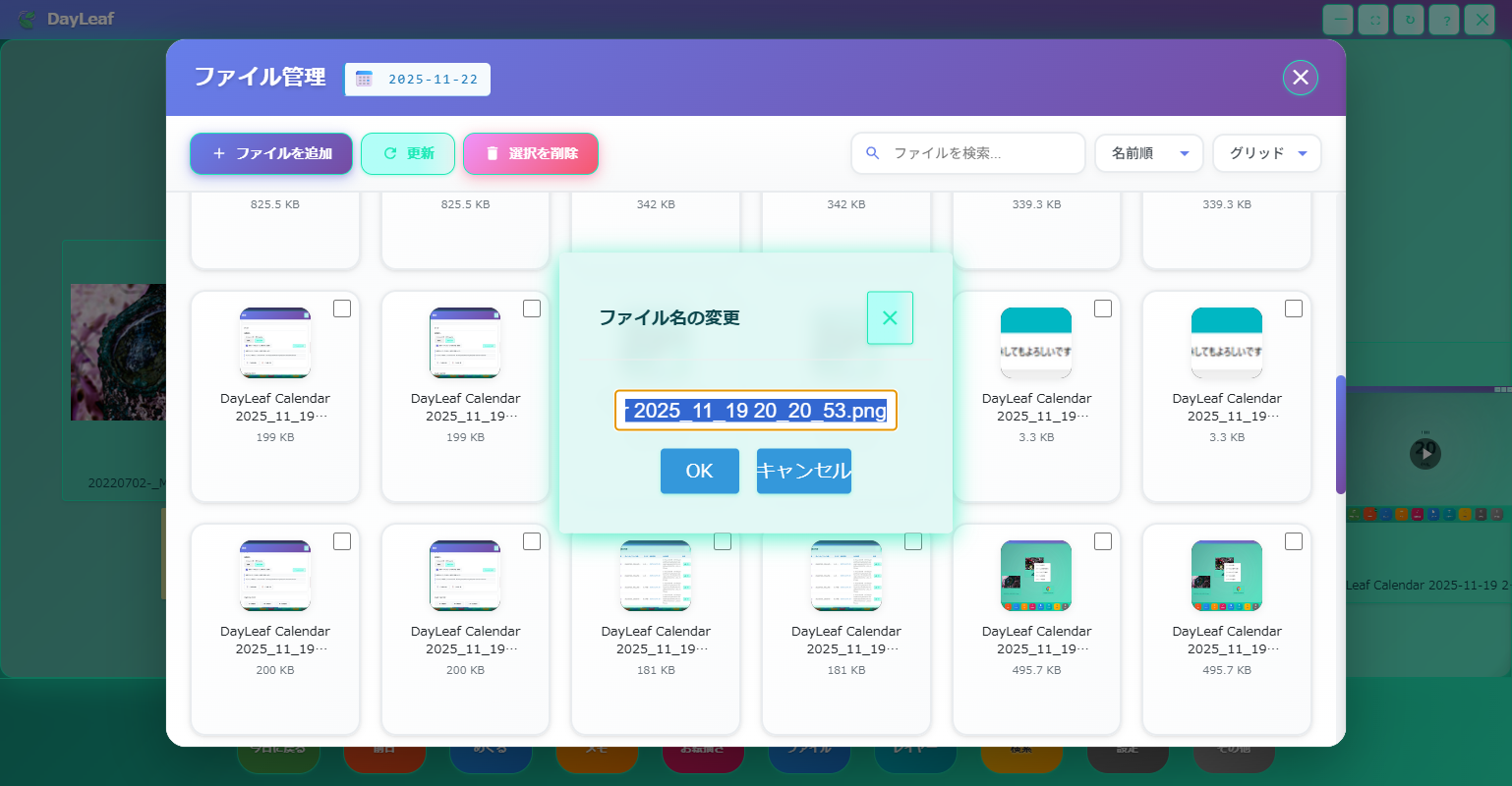
Hovering the mouse cursor over a file card displays quick actions. You can execute rename, open, open location, etc. from here.
This handles files already copied to DayLeaf's dedicated area. Operating directly in Explorer from "Open Location" does not affect original files, but since the app manages data assuming a date-by-date folder structure, we recommend performing deletions and moves within the app as much as possible.
Files are copied and saved to %APPDATA%\dayleaf-calendar\calendar\year\month\day\files, so original files are not modified.

Labeling with Comments

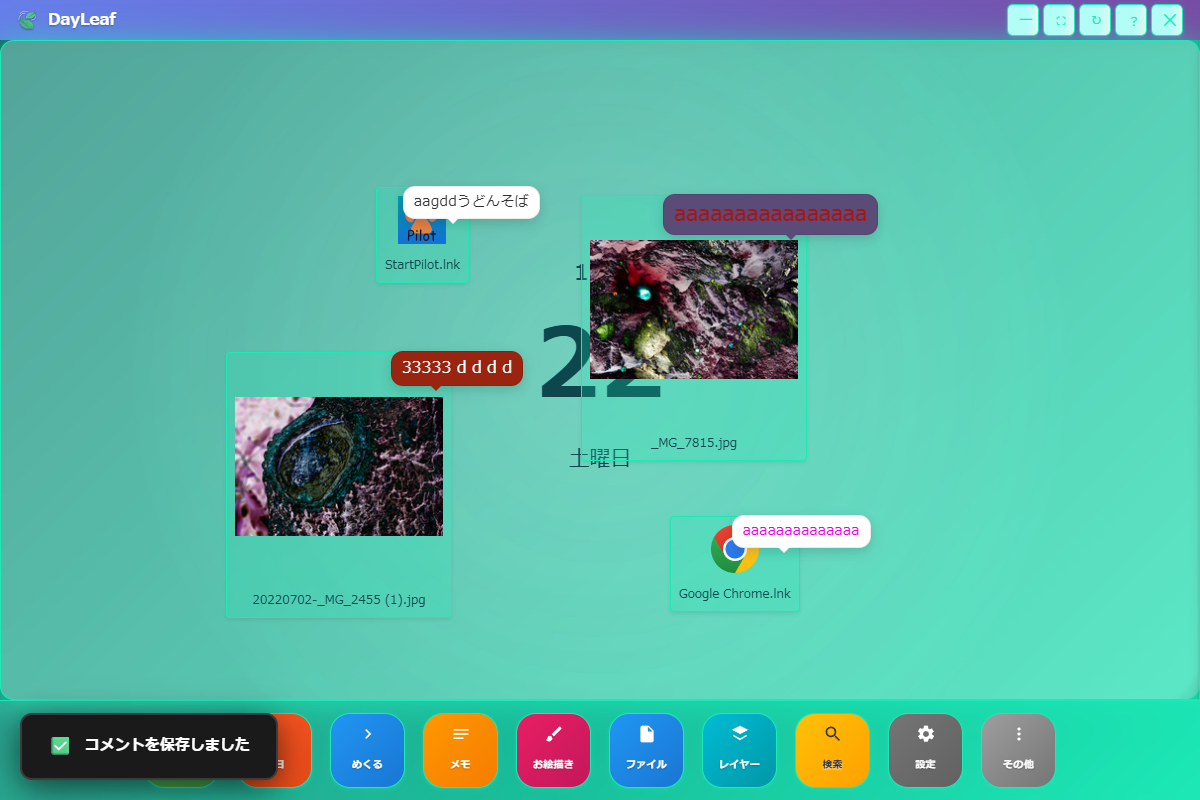
5. Note Management Modal
Clicking the Note button opens a dedicated modal that lists and edits notes for that day. You can manage content, color, and font size, and it also supports backup/restore in JSON format.
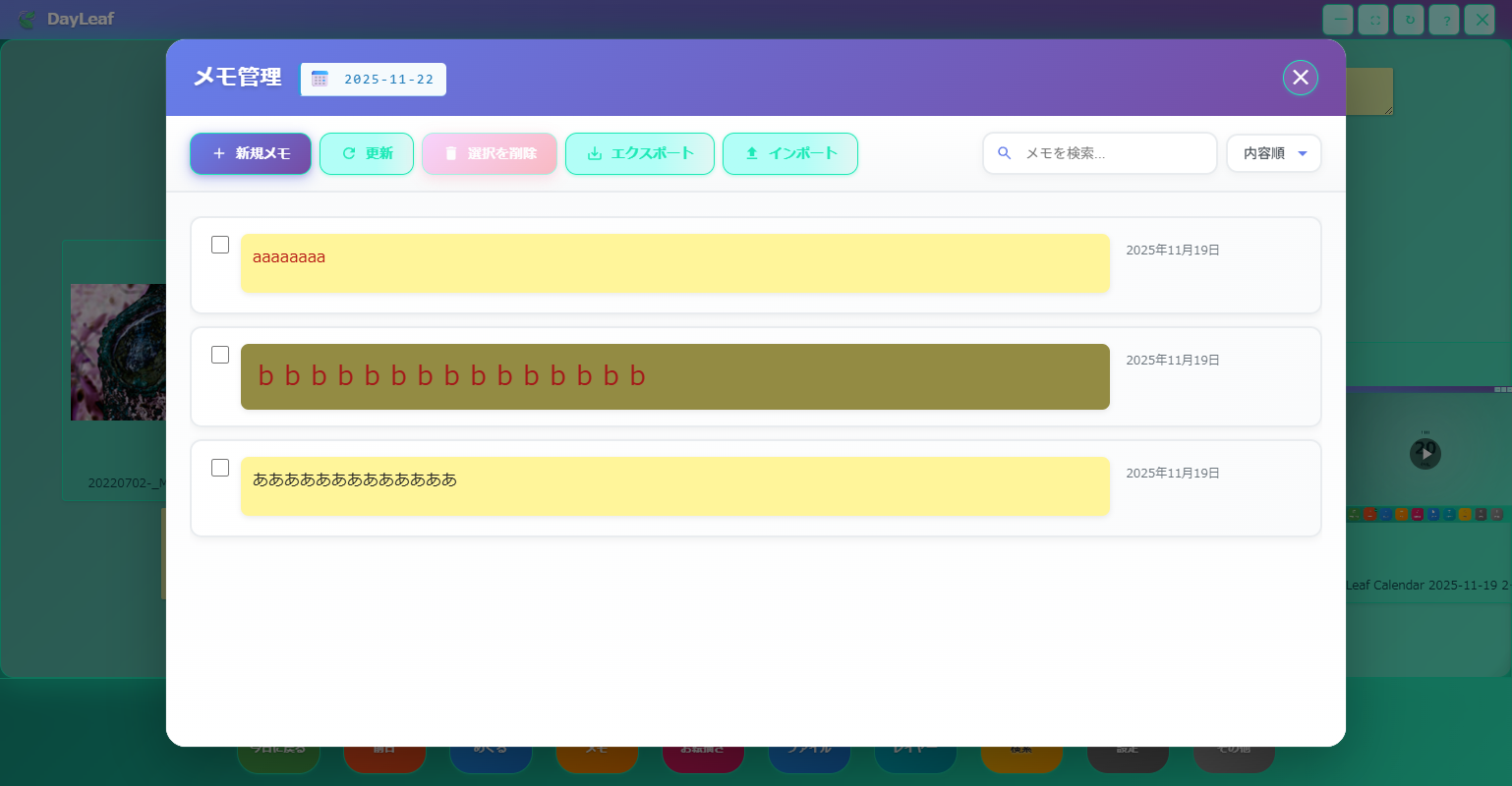
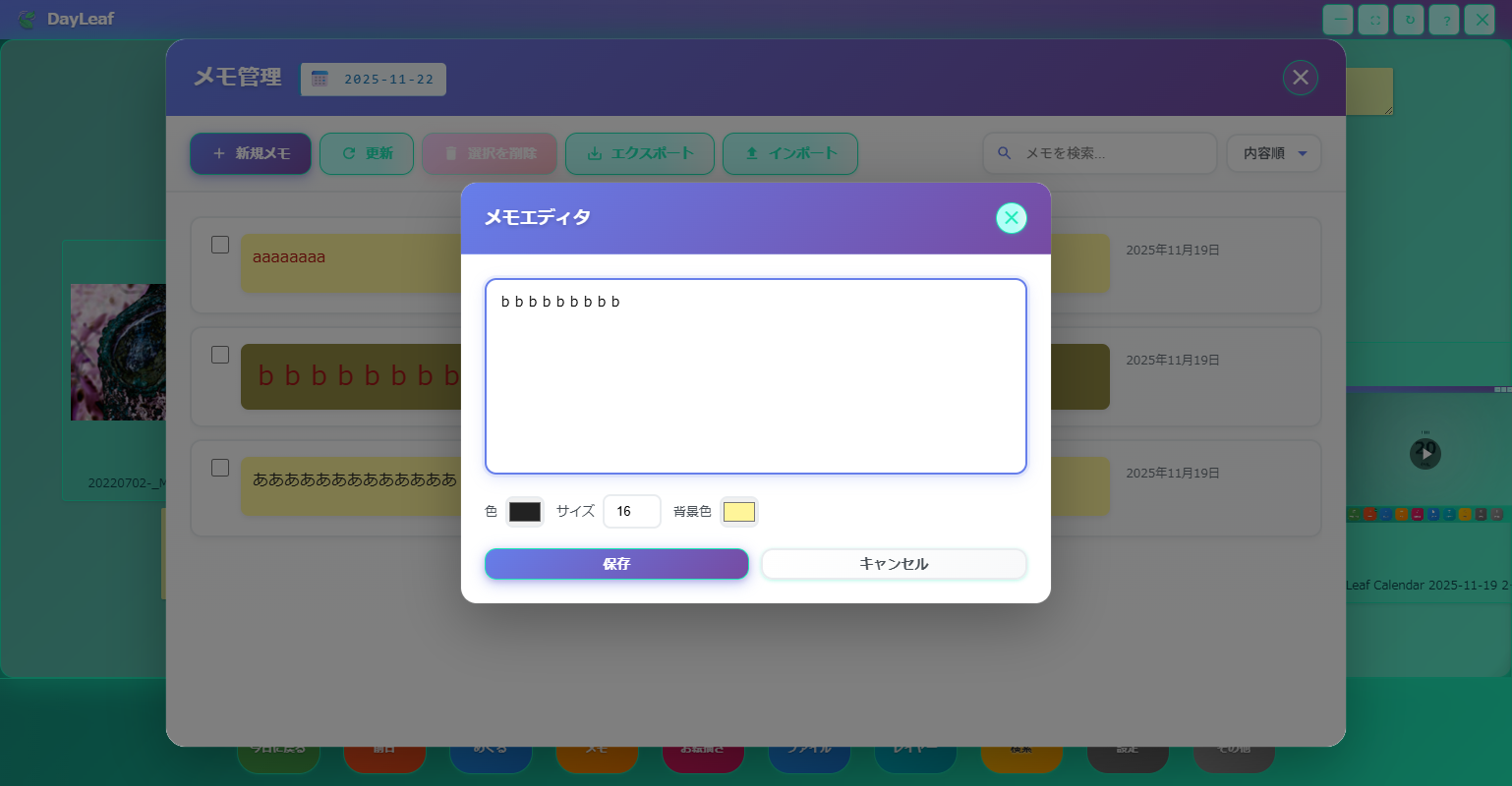
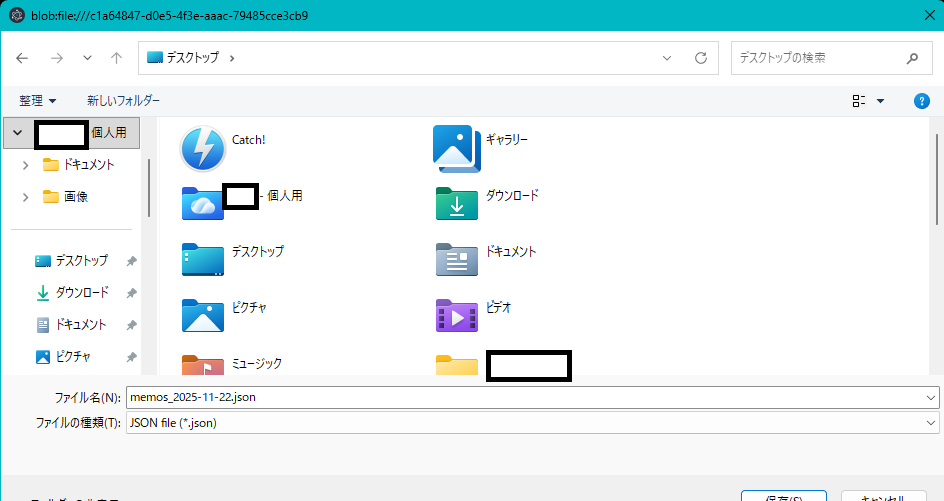
memos_2025-11-22.json). Importing the same JSON re-expands the notes in the calendar.- Create new: "New Note" adds an empty card, and set content and color in the editor.
- Search/Sort: Quickly find the note you want with keyword search and sorting by "Content/Update date", etc.
- Batch operations: Select multiple items with checkboxes and organize with "Delete Selected".
- JSON backup: Export saves notes for each date as JSON, and you can reproduce the same notes on another PC with import.
6. Drawing Modal
In the canvas displayed by the Drawing button, you can input a title and description before starting to draw. You can paste drawn content onto the calendar or place it directly on the date page in direct drawing mode.
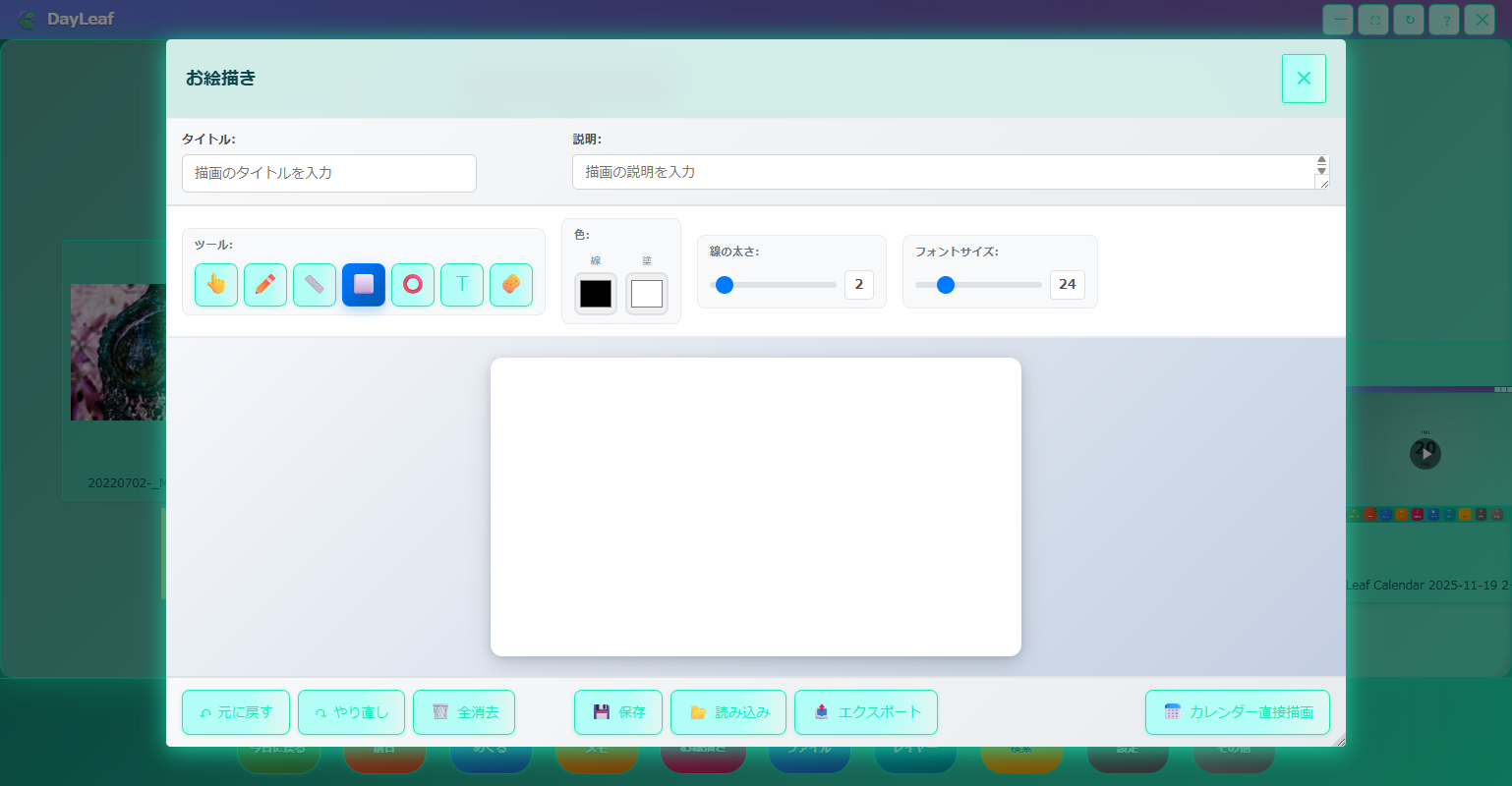
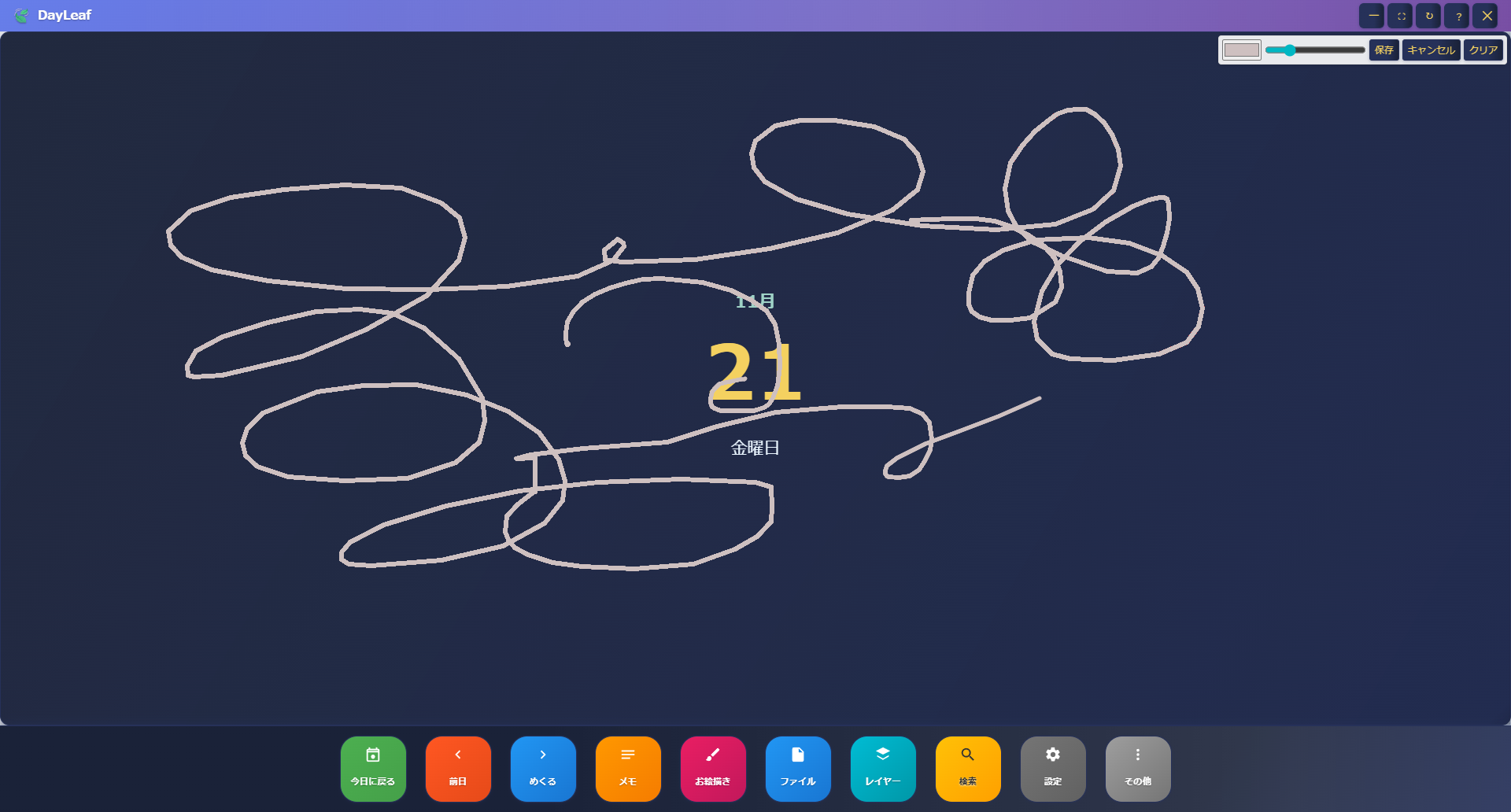
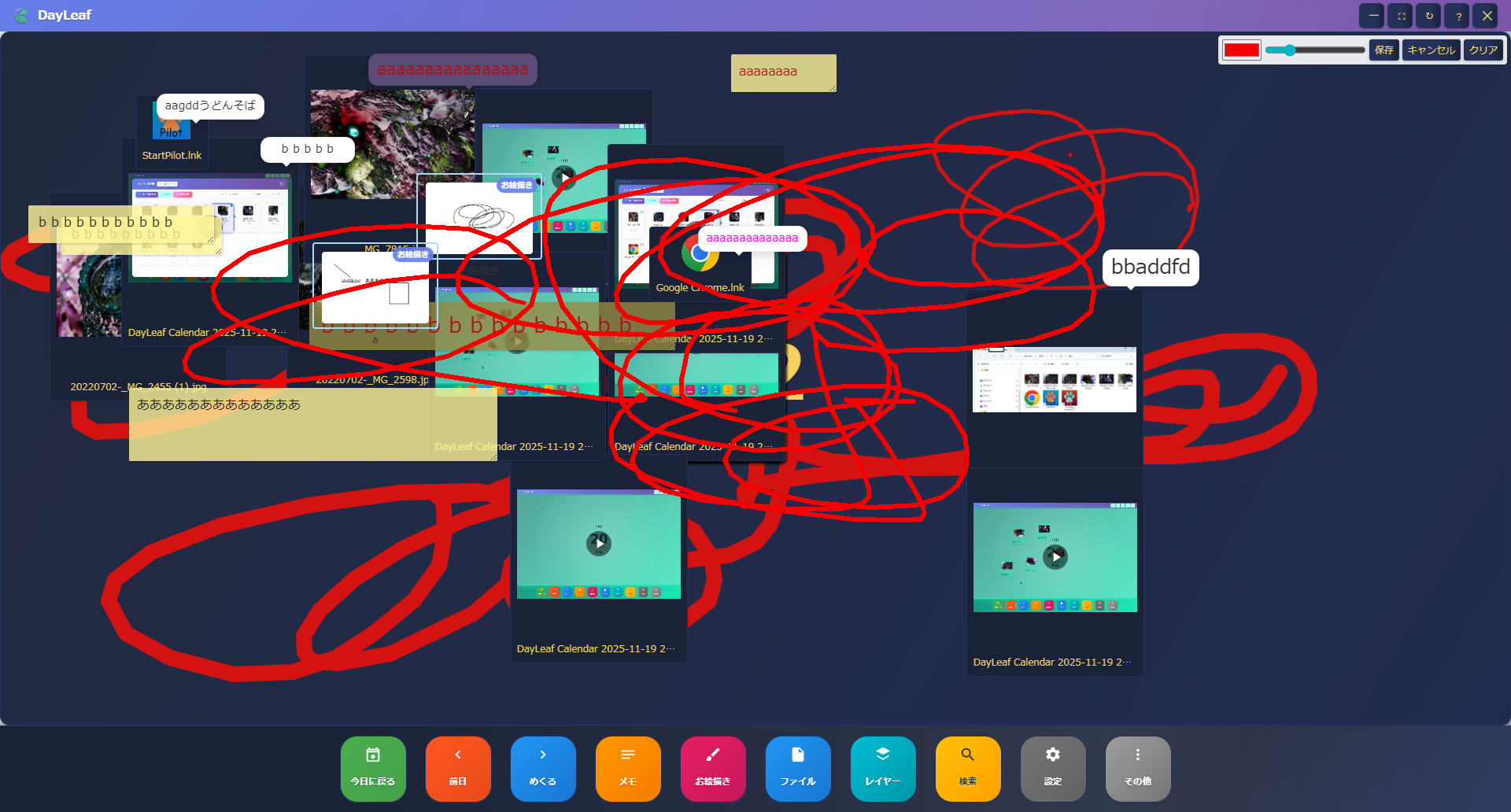
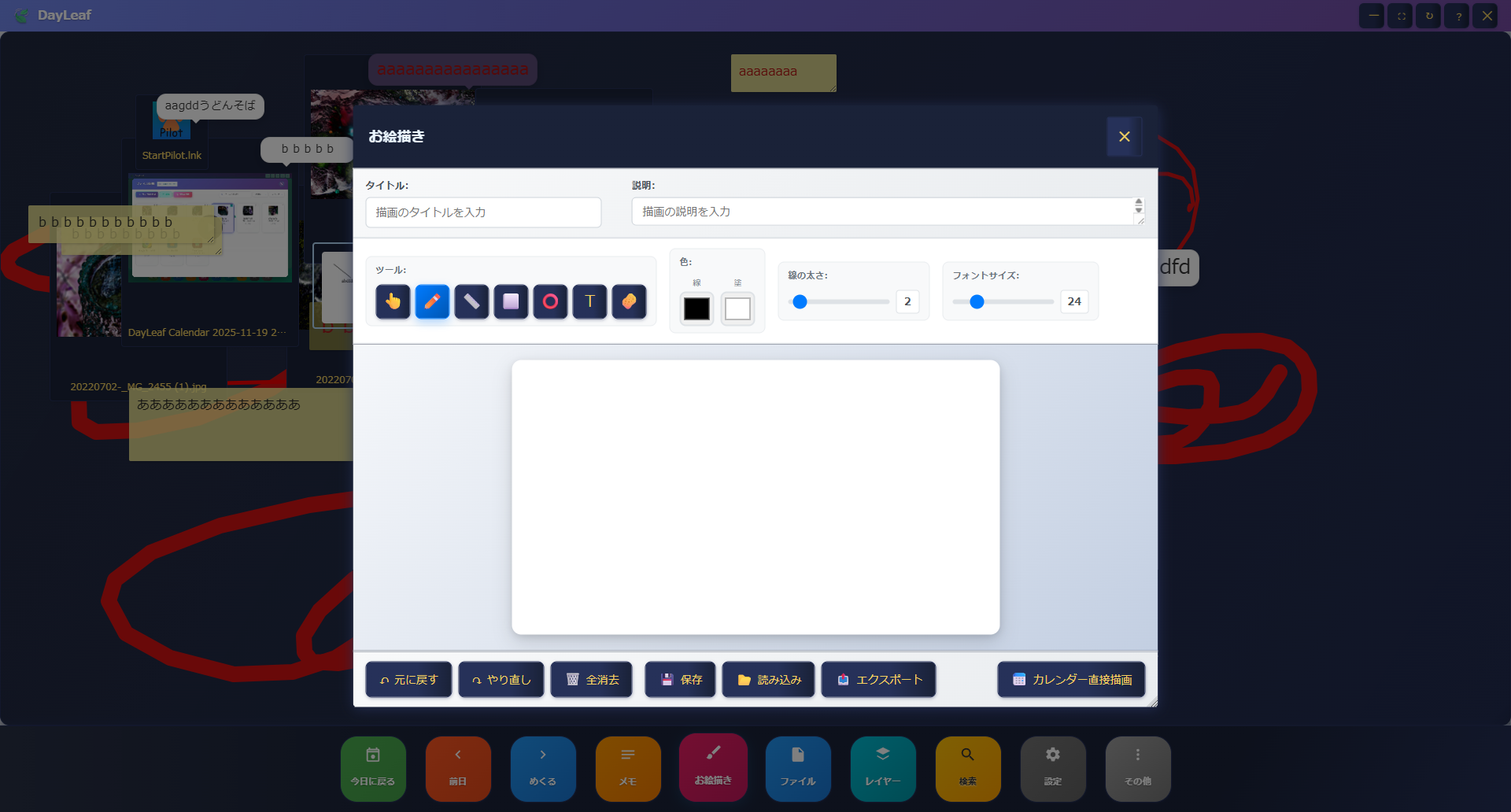
- Title/Description: Input at the top of the canvas. Required as they also appear in search results.
- Tools: Click to switch between Pencil/Ruler/Rectangle/Circle/Text/Eraser. Ruler draws straight lines, Rectangle/Circle can be used with fill settings.
- Action buttons: Undo/Redo/Clear All/Save/Load/Export/Draw Directly on Calendar.
- Draw Directly on Calendar: Draw directly on a darkened calendar and immediately reflect it on the date background. Adjust line width and color in the top right.
- Export: Export images in PNG format. App internal save data is kept in SVG format, so there is no quality loss even when re-editing later.
7. Search Modal
Clicking the Search button opens a dedicated modal where you can search across notes, drawings, doodles, and files. For files, file names are searched; for notes, drawings, and doodles, titles and descriptions are searched.
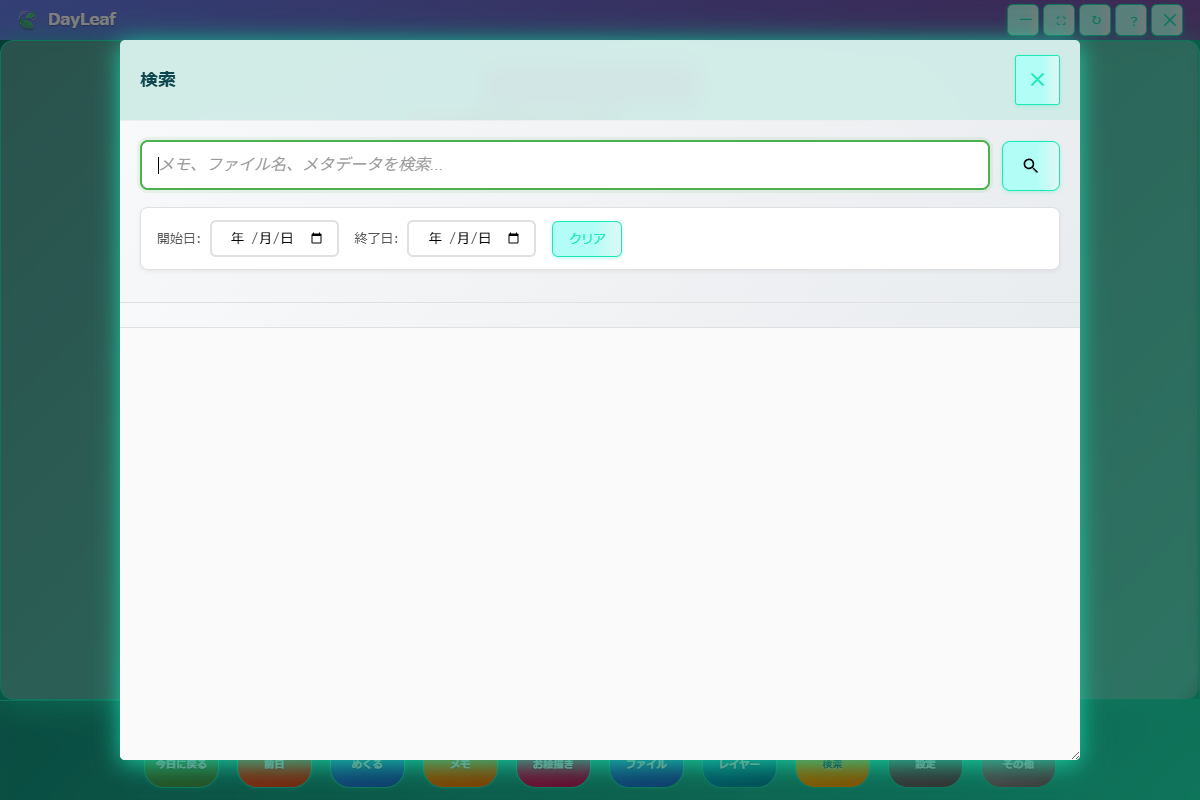
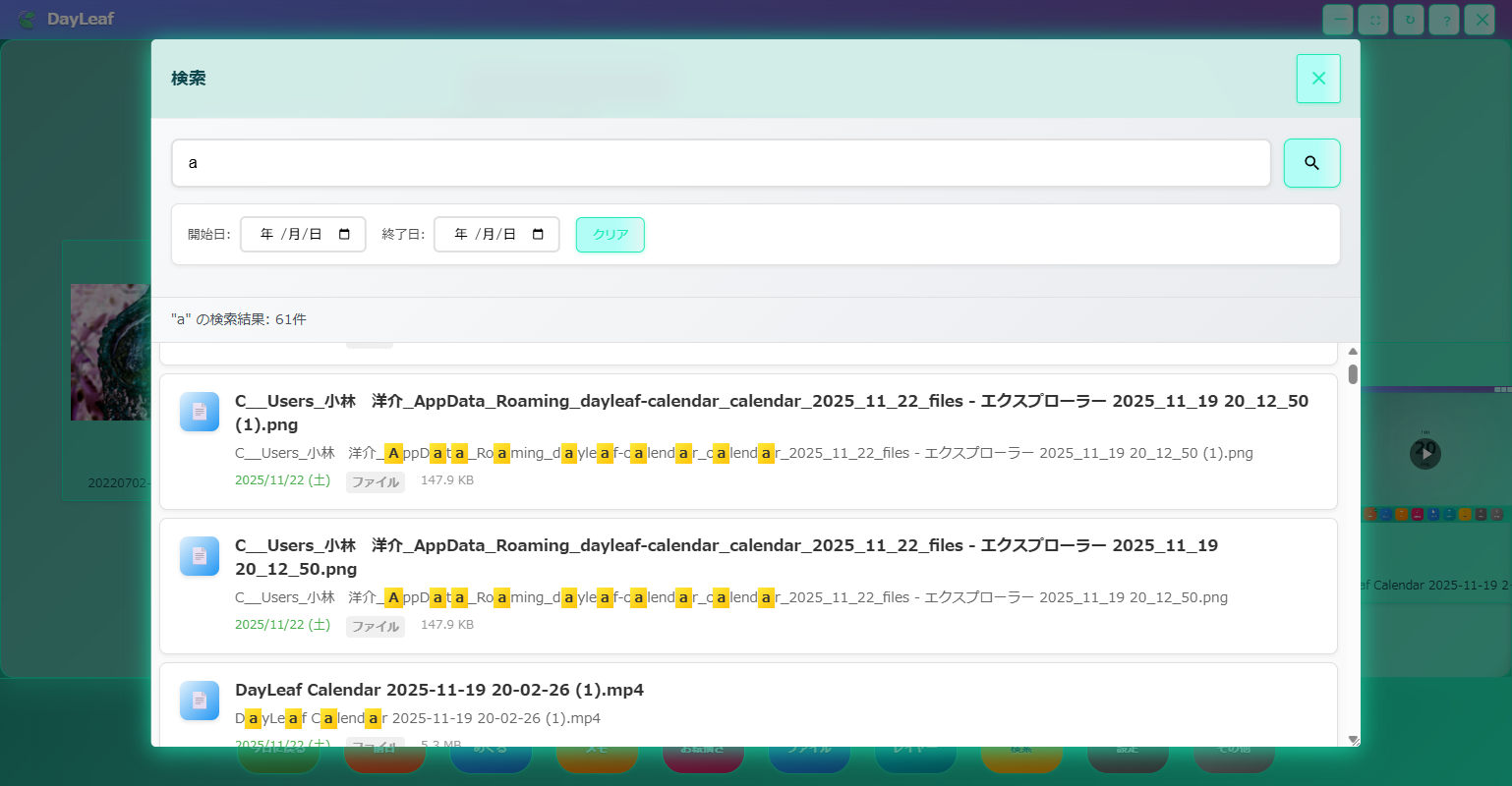
- Press Enter or click the magnifying glass button to execute search.
- Search is partial match, case-insensitive, with markers on hit locations.
- Clicking a result automatically closes the search modal and the calendar jumps to that date.
- "Clear" button resets input and date range all at once.
8. Layer Display Settings
The calendar consists of 3 layers: "Notes/Doodles/Files", and each can be switched on/off individually.
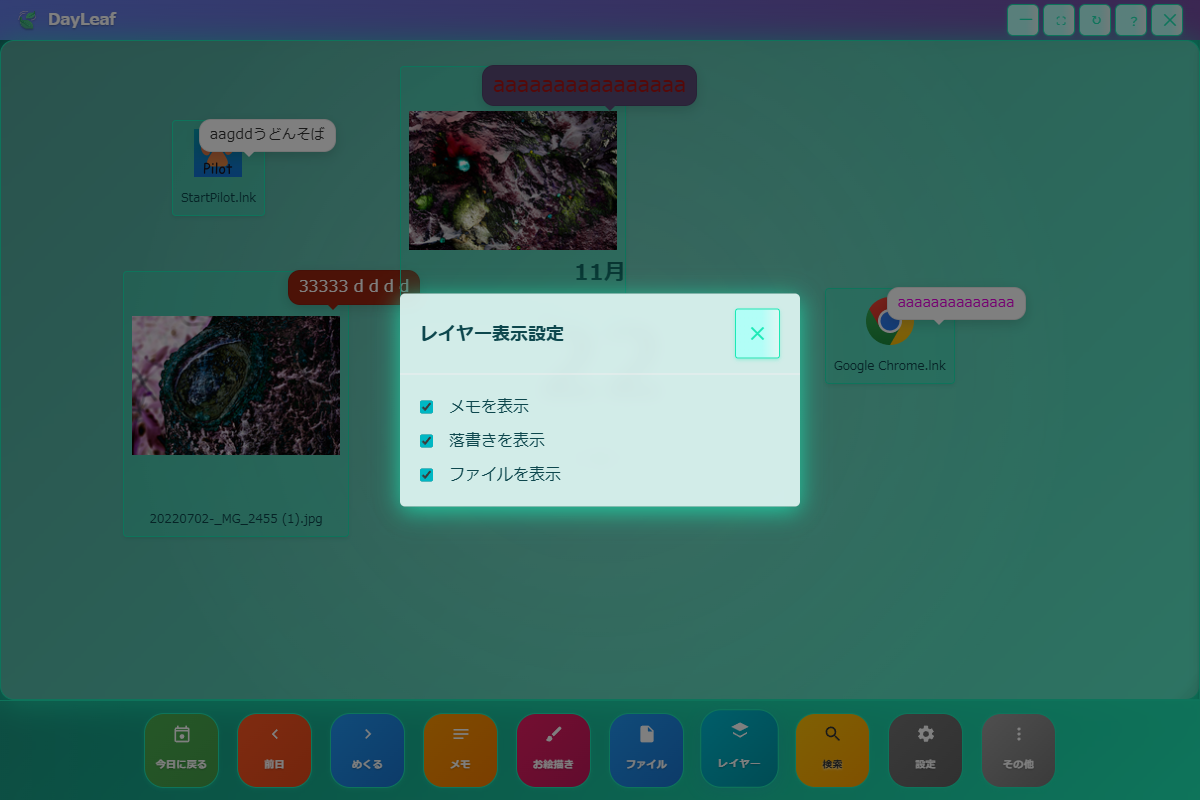
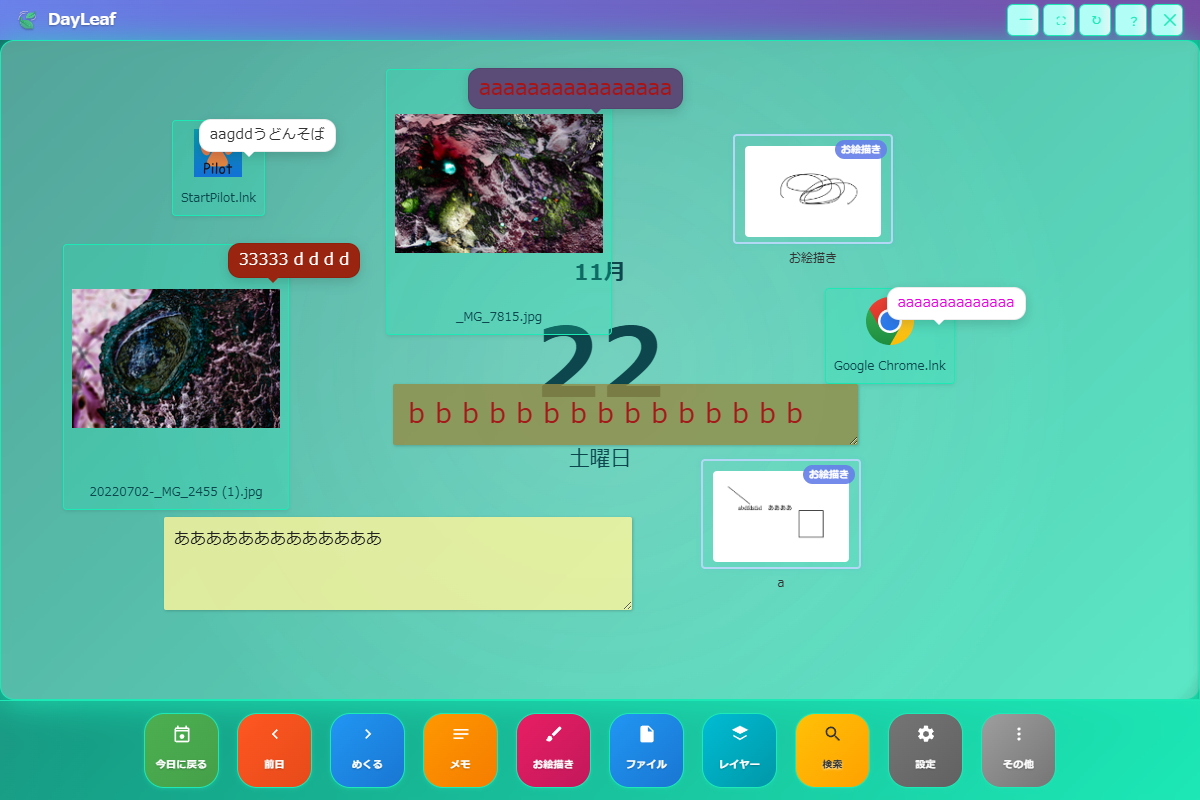
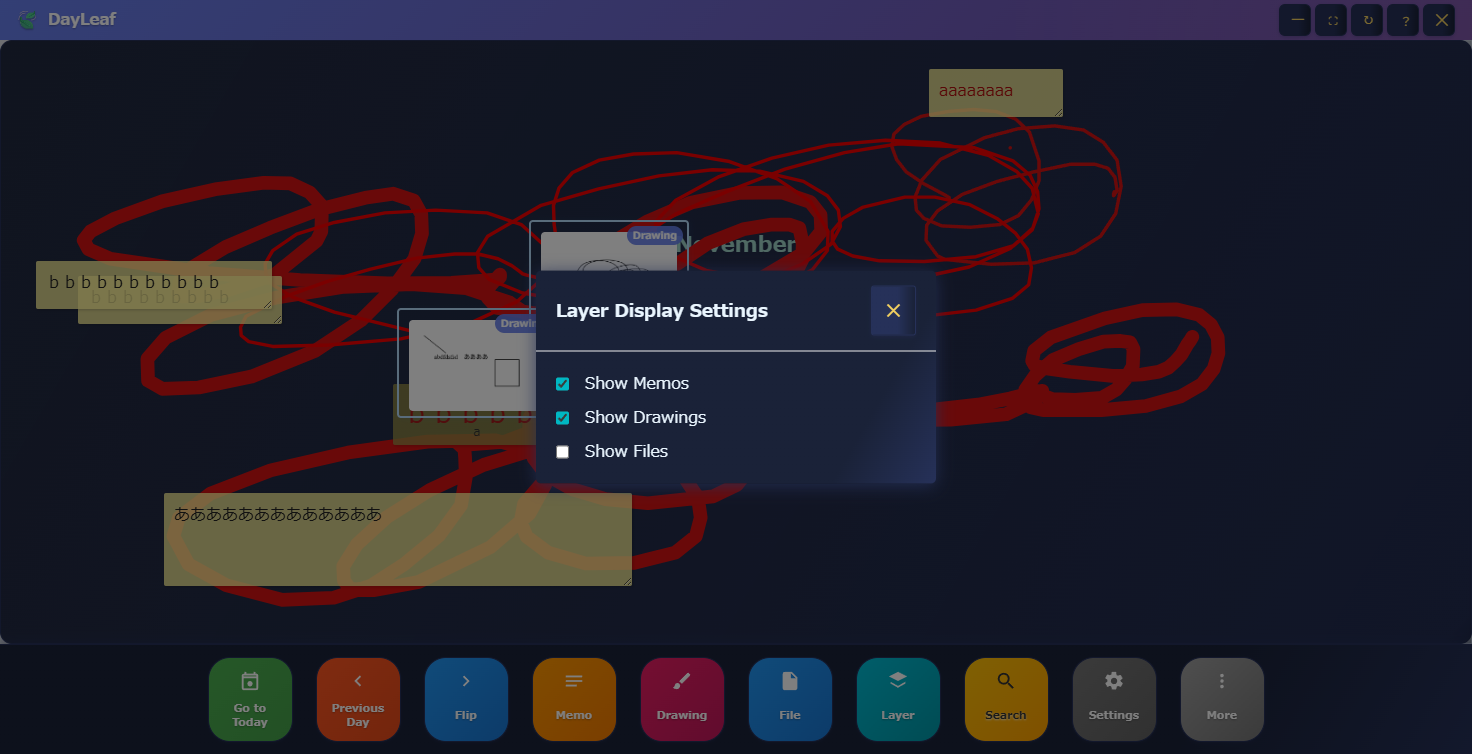
- Layer operations only change display state and do not affect saved data.
- Turning all layers OFF makes the calendar appear empty, so a warning would be helpful.
9. Startup Settings and Shortcuts
Settings to automatically display DayLeaf Calendar when your PC starts and incorporate it into your first-thing-in-the-morning routine. You can control which date to open at startup and the shortcut panel here.
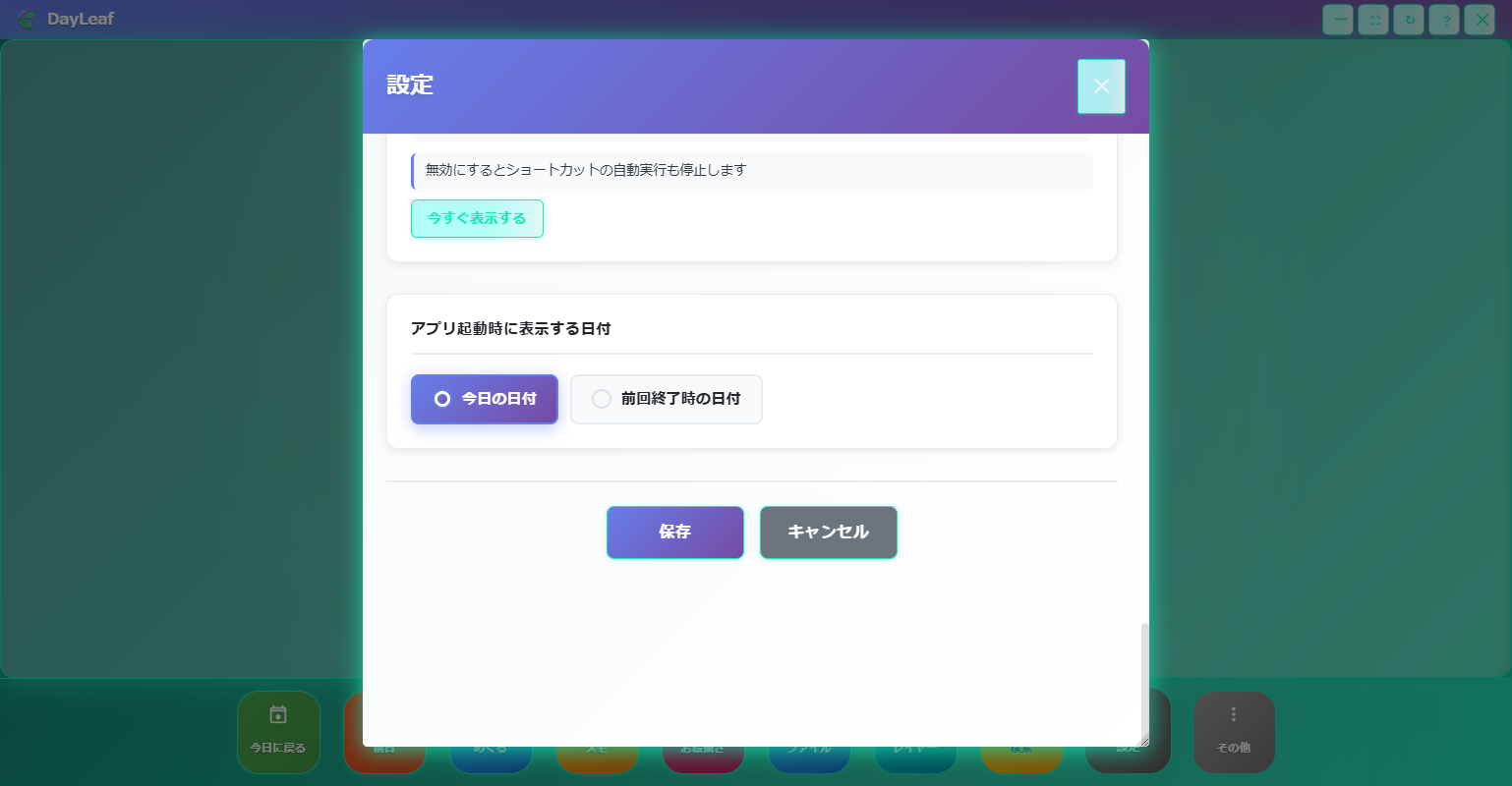
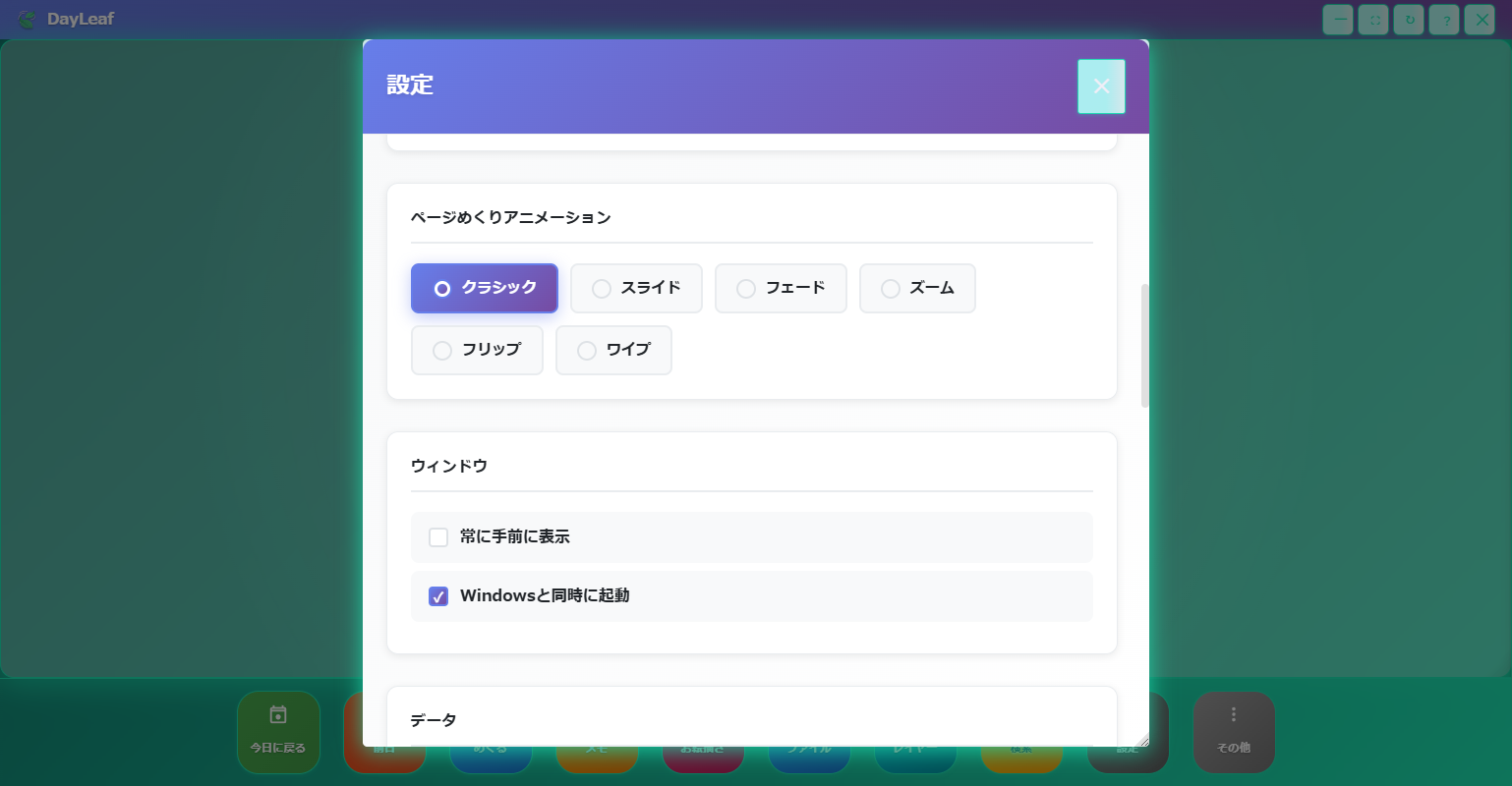
Startup Shortcut Panel
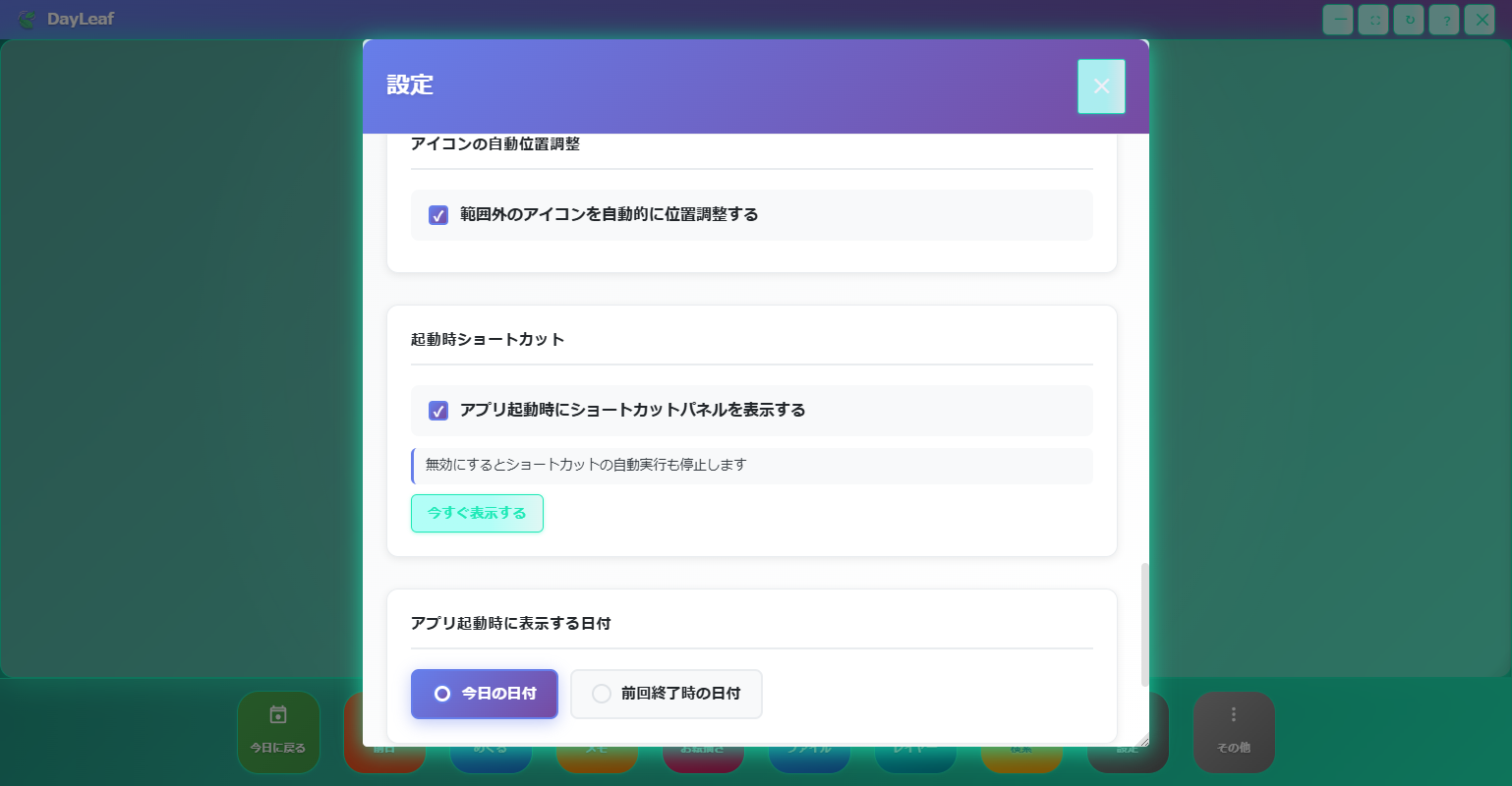
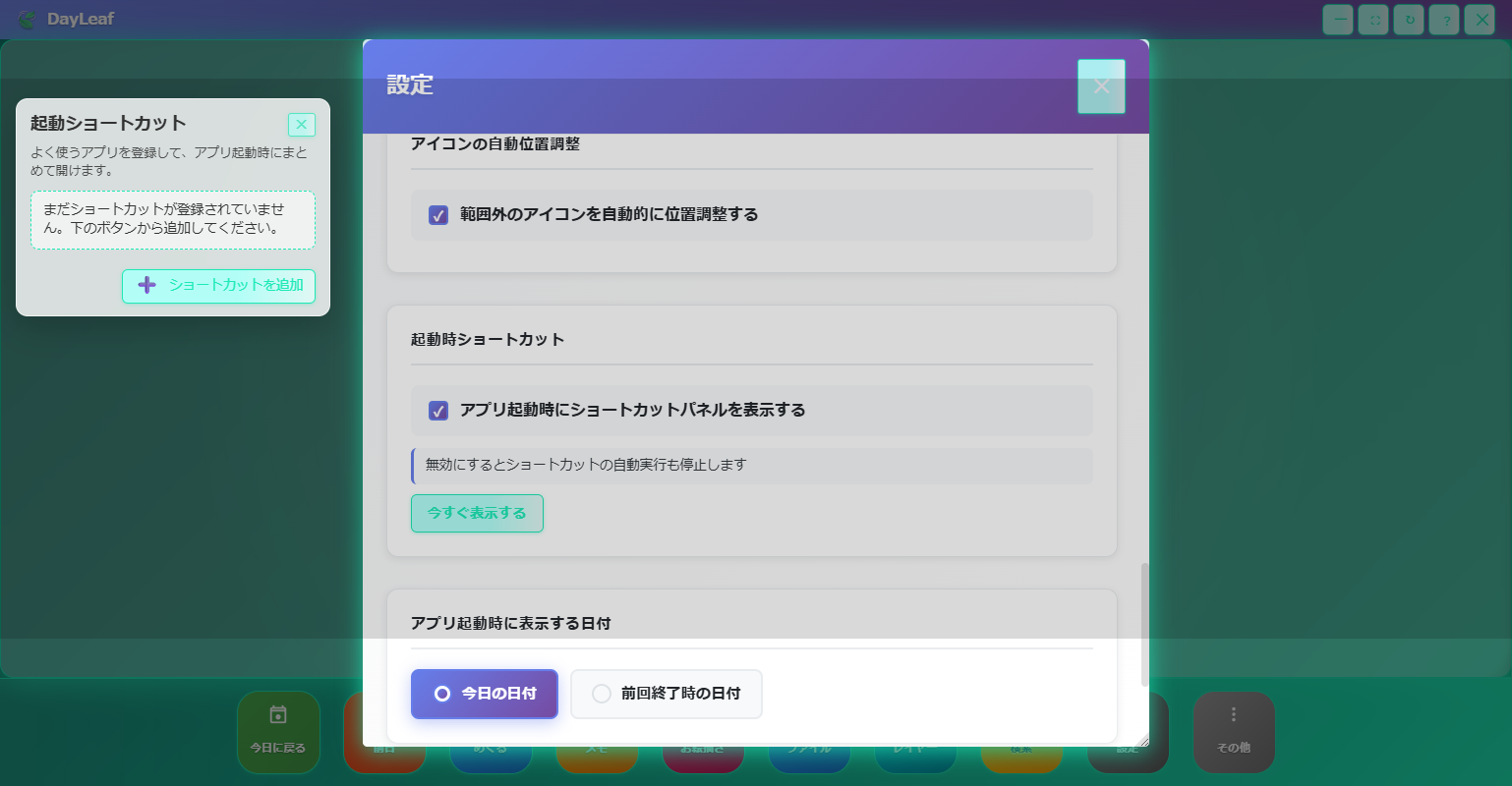
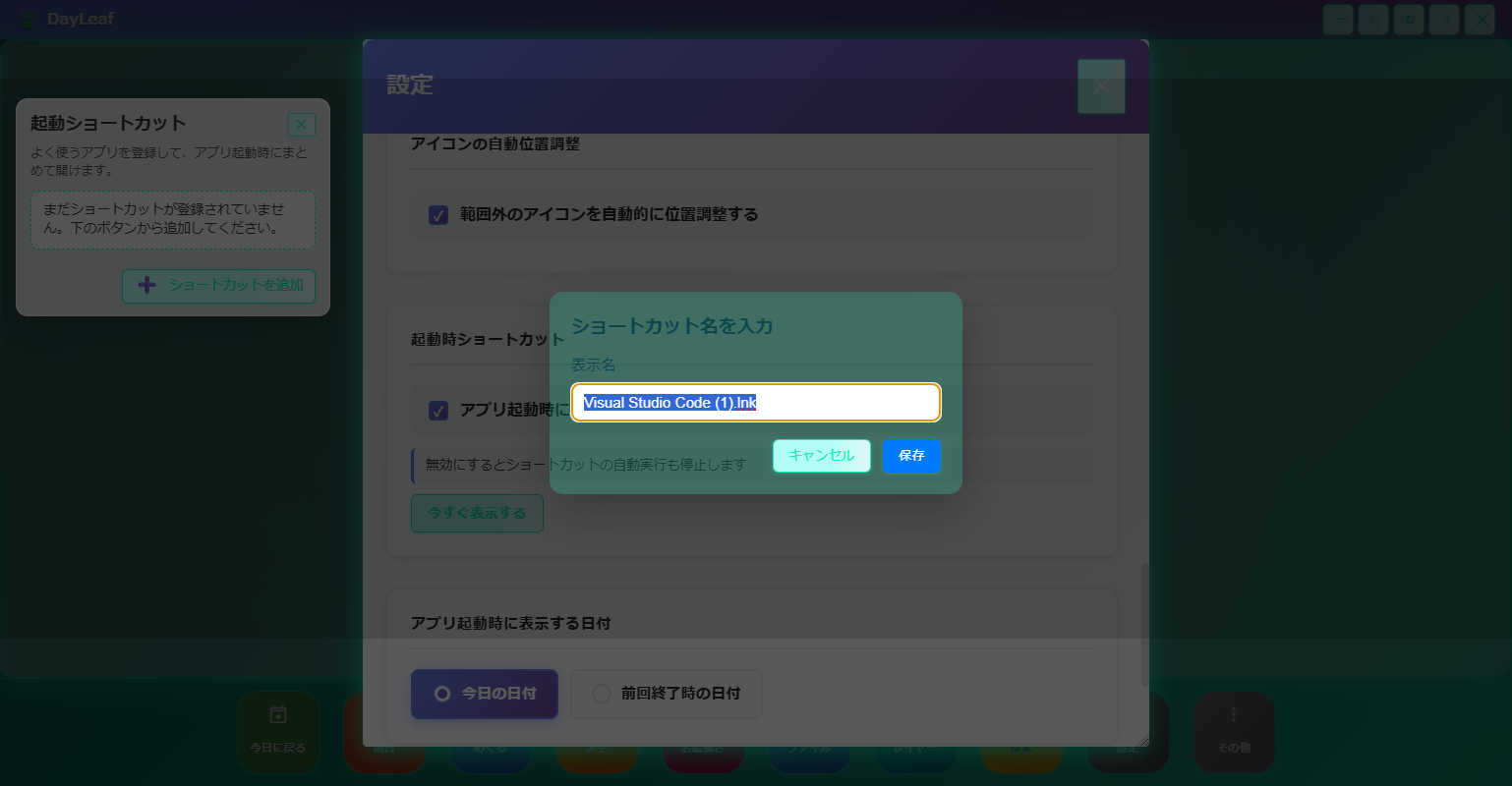
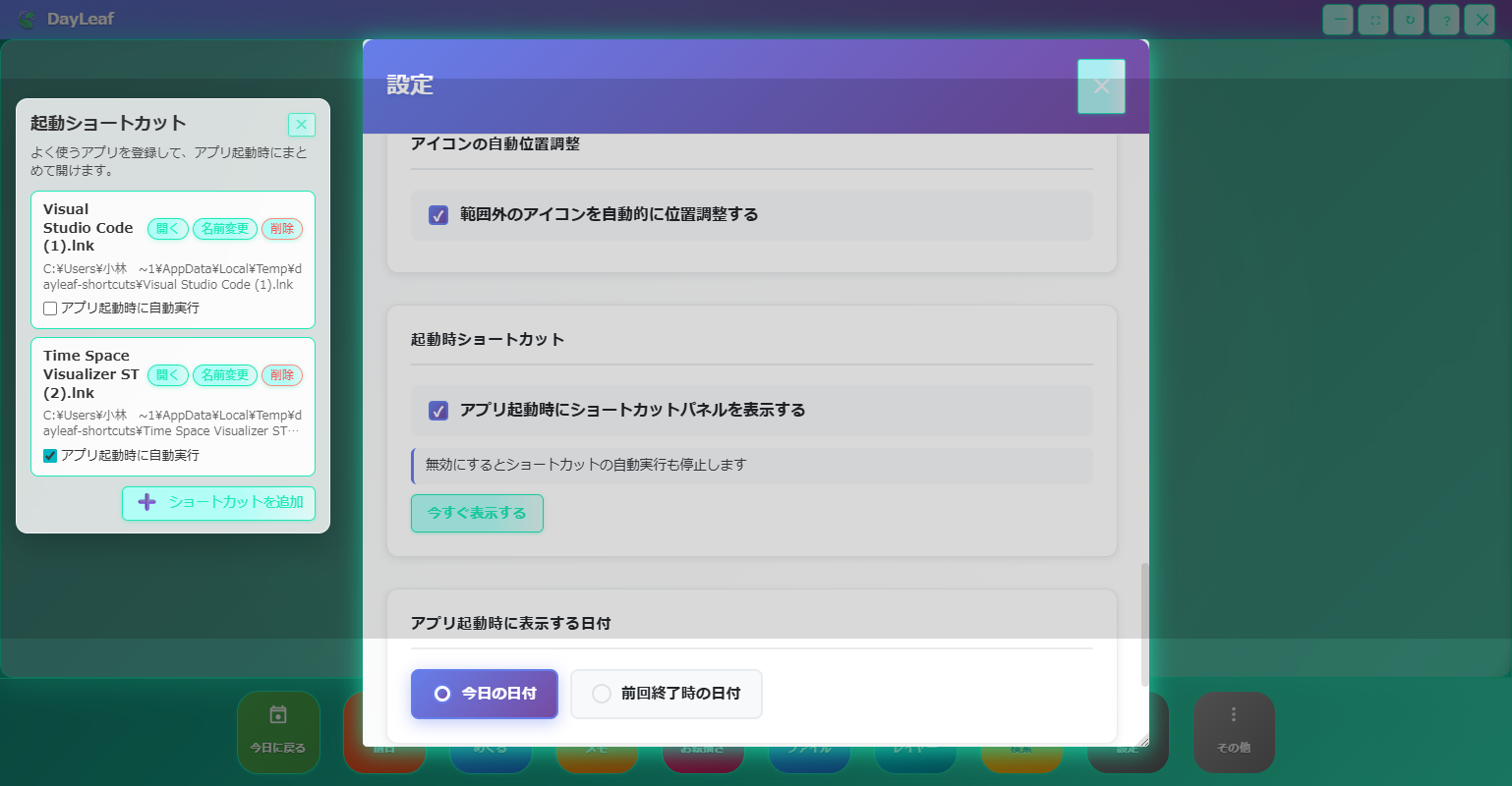
By combining these settings, you can automate PC startup → DayLeaf display → frequently used app launch, making the calendar flip a starting point for your day.
10. Automatic Icon Alignment
Turning ON "Automatically adjust position of out-of-range icons" in Settings > Data at the bottom makes the app automatically reposition notes/doodles/drawings/files that extend beyond the calendar display area (window size). Useful when switching back from 4K or multi-monitor to HD.
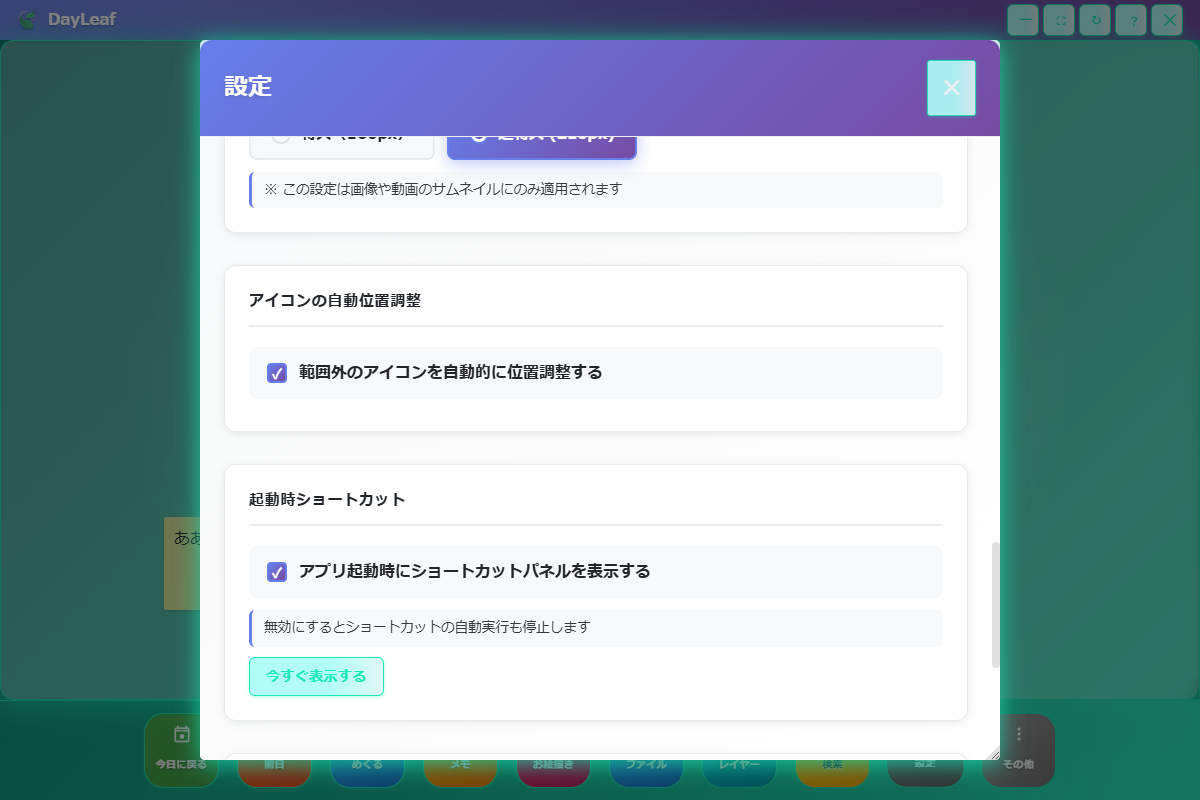
When the feature is enabled and the calendar is redrawn, icons that were outside the window automatically return near the center. Below is an example after placing content to hide at the right edge, then automatic alignment activated.


- Automatic alignment applies to all notes/doodles/drawings/files.
- To maintain arbitrary placement, turn the toggle OFF and place manually.
11. Data Saving and Migration
All data handled by DayLeaf Calendar is copied and saved to a dedicated area without modifying originals. We document the save destination and copy policy here.
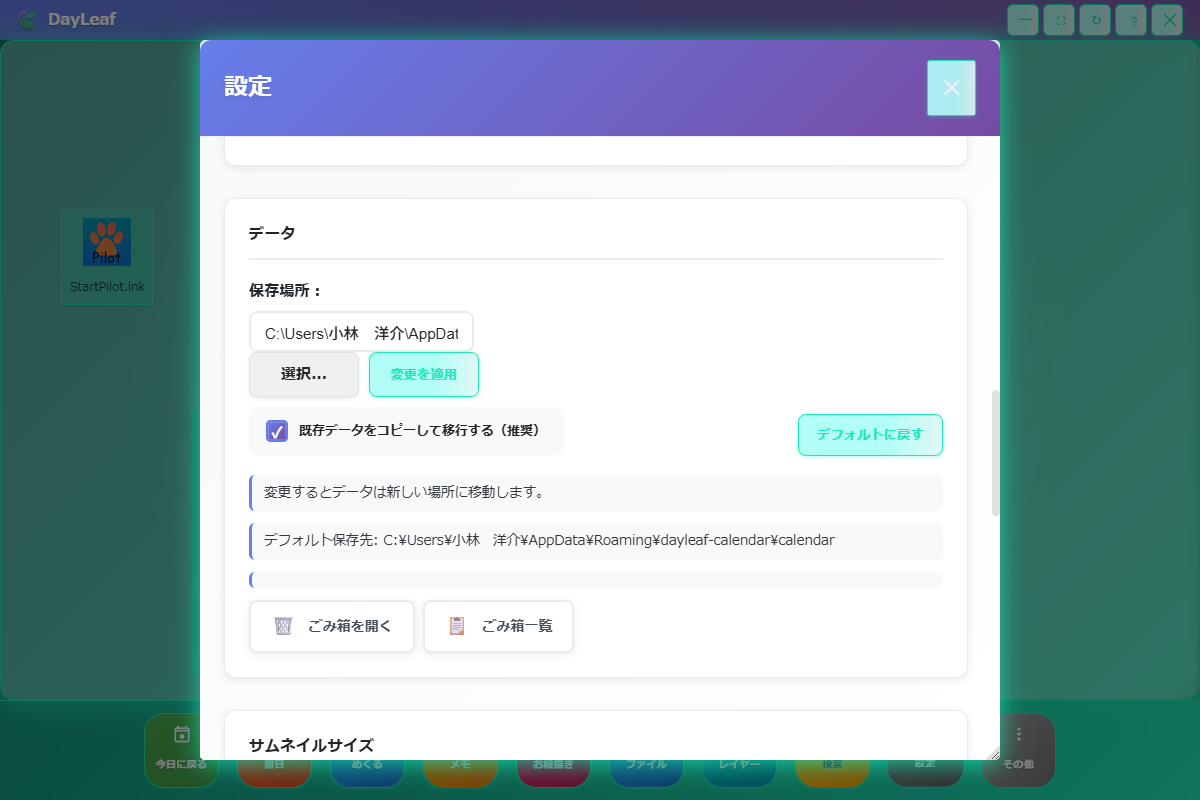
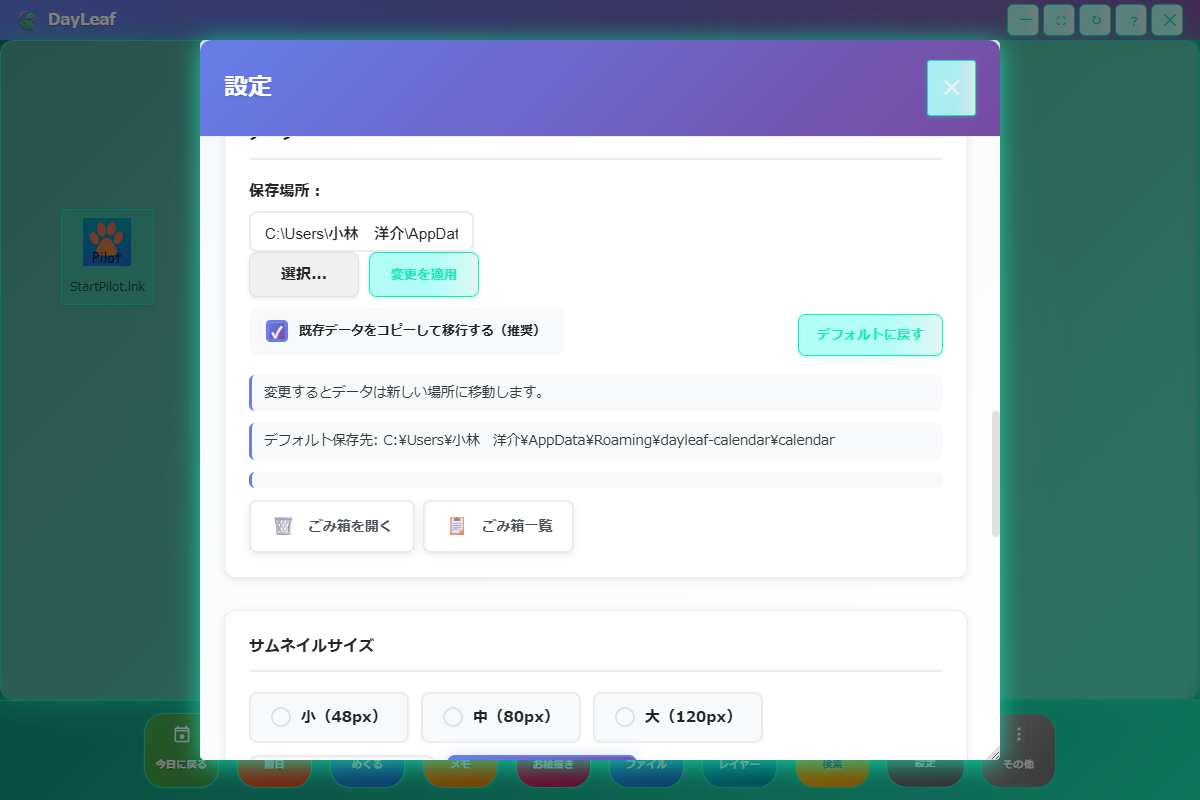
- Initial save destination:
%APPDATA%\dayleaf-calendar\calendar(year→month→day→memos/drawings/files). - Videos and files are categorized in date-by-date folders like
.../calendar/2025/11/22/files, and the app scans this structure each time to update the display. - Direct operation in Explorer is possible, but be careful as moving files to another folder by mistake makes them unreadable by the app. For safety, use "Open Location" to open the relevant folder and only copy or view.
- "Select..." → "Apply Changes" copies and migrates to any folder. Original folder remains intact even if migration fails.
- Special files like
.asarhave corruption risks due to OS permissions and exclusivity issues, so they are excluded from copy targets. If needed, we recommend manually copying in Explorer and not registering them in the app. - Backing up the save destination and Recycle Bin folders entirely makes migration to another PC easy.
12. Deletion and Dedicated Recycle Bin
All deletion operations only move items to DayLeaf's dedicated Recycle Bin, and restoration and permanent deletion are also completed within the app.
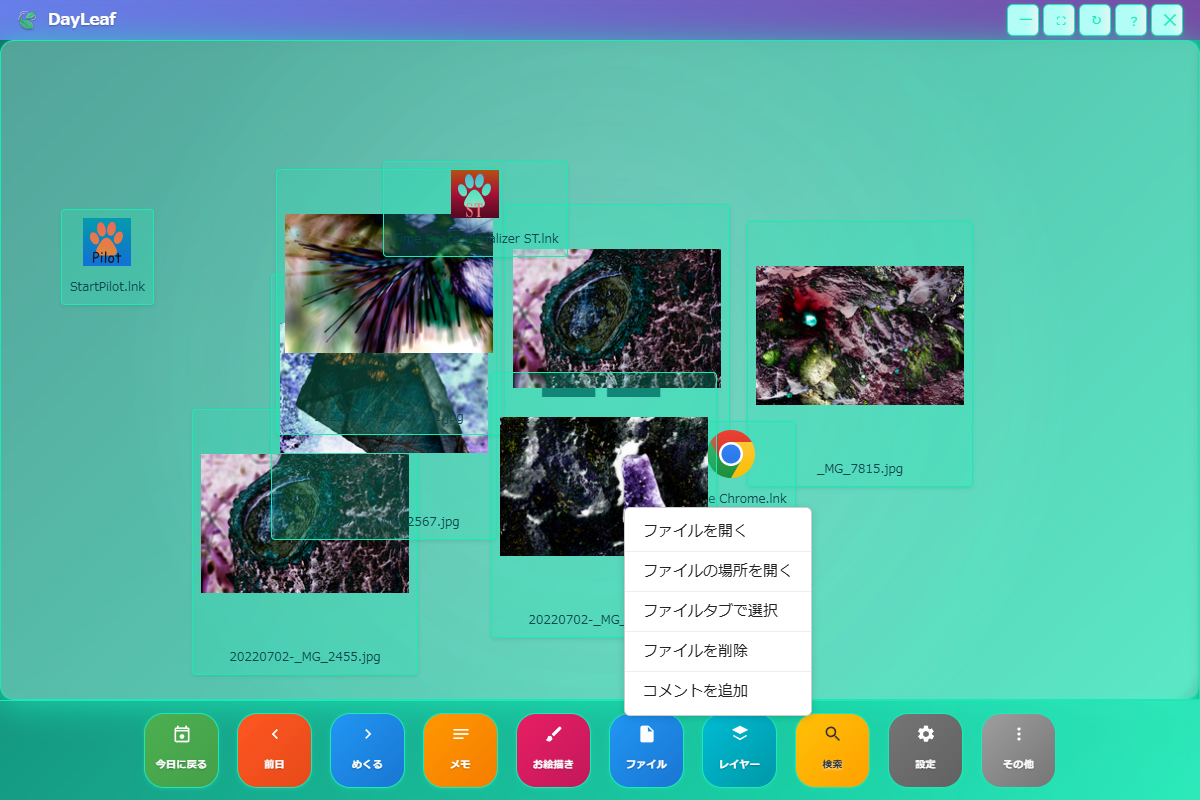
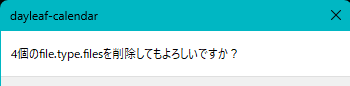
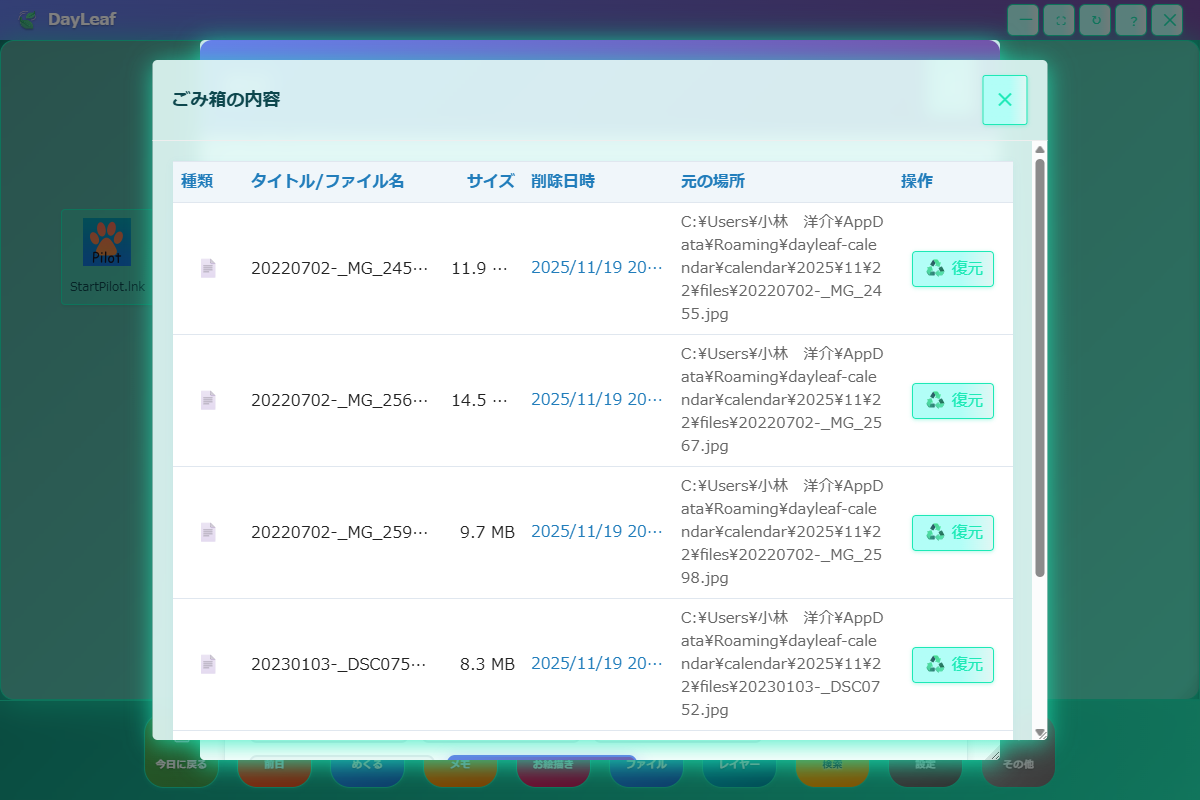
- Restoration returns items to the original date folder and redisplay them on the calendar.
- Permanent deletion is "Empty" in Recycle Bin list or manually delete the folder.
- Since the Recycle Bin is also within the dedicated area, including it in backups provides peace of mind.
13. Usage Scope and Support
DayLeaf Calendar is a personal application designed to safely record daily notes and ideas on your local PC. For managing data requiring high confidentiality such as business secrets and medical information, please use specialized business systems.
For questions or bug reports, please contact us below. Response may take several business days.
- Support: Udon Soba (Twitter)
- In-app Help: Accessible from the "?" button in the title bar
14. License and Acknowledgments
DayLeaf Calendar (c) Udon Soba 2025 / All Rights Reserved. Only license purchasers may use it, and one license permits use on one device. Unauthorized copying, distribution, modification, decompilation, and reverse engineering are prohibited, and the software is provided "as is". This application uses the following OSS and complies with each license condition.
| Category | Name / Version | License | Repository / Reference |
|---|---|---|---|
| Runtime | Electron v39.2.1 | MIT License | github.com/electron/electron |
| Settings Store | electron-store v11.0.2 | MIT License | github.com/sindresorhus/electron-store |
| Drawing | fabric v6.9.0 | MIT License | github.com/fabricjs/fabric.js |
| Character Encoding | iconv-lite v0.7.0 | MIT License | github.com/ashtuchkin/iconv-lite |
| ID Generation | uuid v13.0.0 | MIT License | github.com/uuidjs/uuid |
| File Operations | fs-extra v11.3.2 | MIT License | github.com/jprichardson/node-fs-extra |
| Build | electron-builder v26.0.12 | MIT License | github.com/electron-userland/electron-builder |
| Icon | electron-icon-builder v2.0.1 | MIT License | github.com/onmyway133/electron-icon-builder |
| Utility | glob v12.0.0 | Blue Oak Model License 1.0.0 | github.com/isaacs/node-glob |
| Utility | rimraf v6.1.0 | Blue Oak Model License 1.0.0 | github.com/isaacs/rimraf |
| Standard Modules | Node.js path / fs / child_process / os | MIT License | github.com/nodejs/node |
MIT License
Permission is hereby granted, free of charge, to any person obtaining a copy
of this software and associated documentation files (the "Software"), to deal
in the Software without restriction, including without limitation the rights
to use, copy, modify, merge, publish, distribute, sublicense, and/or sell
copies of the Software, and to permit persons to whom the Software is
furnished to do so, subject to the following conditions:

The above copyright notice and this permission notice shall be included in all
copies or substantial portions of the Software.

THE SOFTWARE IS PROVIDED "AS IS", WITHOUT WARRANTY OF ANY KIND, EXPRESS OR
IMPLIED, INCLUDING BUT NOT LIMITED TO THE WARRANTIES OF MERCHANTABILITY,
FITNESS FOR A PARTICULAR PURPOSE AND NONINFRINGEMENT. IN NO EVENT SHALL THE
AUTHORS OR COPYRIGHT HOLDERS BE LIABLE FOR ANY CLAIM, DAMAGES OR OTHER
LIABILITY, WHETHER IN AN ACTION OF CONTRACT, TORT OR OTHERWISE, ARISING FROM,
OUT OF OR IN CONNECTION WITH THE SOFTWARE OR THE USE OR OTHER DEALINGS IN THE
SOFTWARE.
Blue Oak Model License 1.0.0
Blue Oak Model License
Version 1.0.0

Purpose
This license gives everyone as much permission to work with this software as
possible, while protecting contributors from liability.

Acceptance
In order to receive this license, you must agree to its rules. The rules of this
license are both obligations under that agreement and conditions to your license.
You must not do anything with this software that triggers a rule you cannot or
will not follow.

Copyright
Each contributor licenses you to do everything with this software that would
otherwise infringe that contributor's copyright in it.

Notices
You must ensure that everyone who gets a copy of any part of this software from
you, with or without changes, also gets the text of this license or a link to
https://blueoakcouncil.org/license/1.0.0

Excuse
If anyone notifies you in writing that you have not complied with Notices, you
can keep your license by taking all practical steps to comply within 30 days
after the notice. If you do not do so, your license ends immediately.

Patent
Each contributor licenses you to do everything with this software that would
otherwise infringe any patent claims they can license or become able to license.

Reliability
No contributor can revoke this license.

No Liability
As far as the law allows, this software comes as is, without any warranty or
condition, and no contributor will be liable to anyone for any damages related
to this software or this license, under any kind of legal claim.
DayLeaf Calendar is supported by the achievements of many open source communities. We deeply thank all library providers and maintainers, including Electron and Fabric.js. We will continue to respect license conditions and pursue transparent development.